A laptop keeps overheating when it cannot remove heat efficiently from its internal components. You may notice the bottom of the laptop becoming unusually hot, the cooling fan running loudly, performance slowing down, or the computer shutting down unexpectedly.
Some heat during gaming, video editing, or other demanding tasks is normal. However, frequent overheating can reduce performance and may eventually affect internal components.
Fortunately, many overheating problems are caused by simple issues such as blocked air vents, dust buildup, too many background applications, or using the laptop on a soft surface.
In this guide, you’ll learn why a laptop keeps overheating, seven practical solutions you can try, and when it may be better to contact a professional.
Why Does a Laptop Keep Overheating?
Before trying any fixes, it helps to understand where the extra heat may be coming from.
Common causes include:
- Blocked ventilation openings
- Dust around cooling vents and fans
- Using the laptop on a bed or blanket
- Too many programs running simultaneously
- High CPU or GPU usage
- An aging or malfunctioning cooling fan
- Dried or degraded thermal paste
- High room temperature
- Malware or unwanted background processes
If your laptop keeps overheating, start with the simple fixes below before considering internal repairs.
1. Place the Laptop on a Hard, Flat Surface
One of the easiest things to check is where you are using your laptop.
Many laptops pull cool air through vents located underneath the device. Placing the computer on a bed, sofa, pillow, blanket, or your lap can partially block these openings.
When airflow becomes restricted, hot air may remain trapped inside the laptop.
Move the laptop to a clean, hard, flat surface such as a desk or table. Make sure none of the ventilation openings are covered.
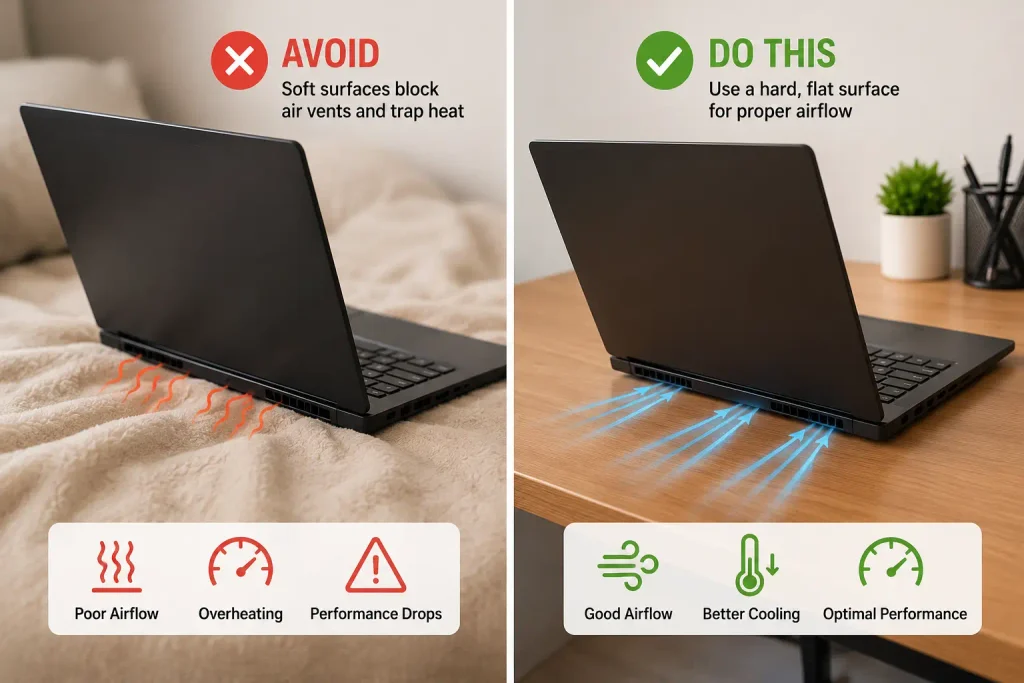
Then use the laptop normally for a while and check whether its temperature and fan noise improve.
If your laptop keeps overheating mainly when you use it on soft surfaces, restricted airflow may be the primary cause.
Best for: A laptop that gets hotter on beds, sofas, blankets, or other soft surfaces.
2. Clean the Laptop Air Vents
Dust is another common reason a laptop may struggle to cool itself.
Over time, dust and lint can collect around the intake and exhaust vents. This reduces airflow and forces the cooling system to work harder.
First, completely shut down the laptop and unplug the charger.
Locate the ventilation openings, which are commonly found on the sides, back, or underside of the computer.
Inspect them for visible dust.
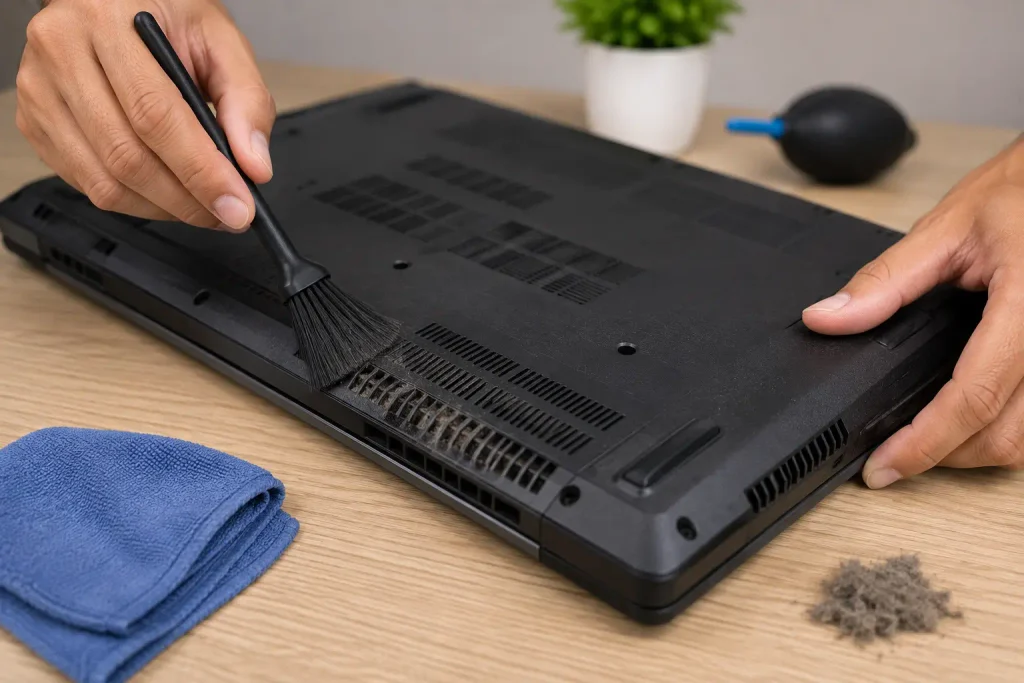
You can carefully clean the exterior vents using a soft brush or another method recommended by the laptop manufacturer. Avoid pushing objects deep inside the vents or opening the laptop unless you know how to do so safely.
For additional guidance, see Dell’s official guide on troubleshooting laptop overheating and keeping the air vents properly ventilated.
After cleaning the accessible vents, restart the laptop and monitor its temperature.
A laptop keeps overheating in many cases simply because accumulated dust prevents enough cool air from reaching the internal components.
Best for: Laptops with dusty vents, unusually loud fans, or reduced airflow.
3. Close Unnecessary Programs and Browser Tabs
Sometimes the cooling system is working correctly, but the laptop is producing excessive heat because the processor is constantly under heavy load.
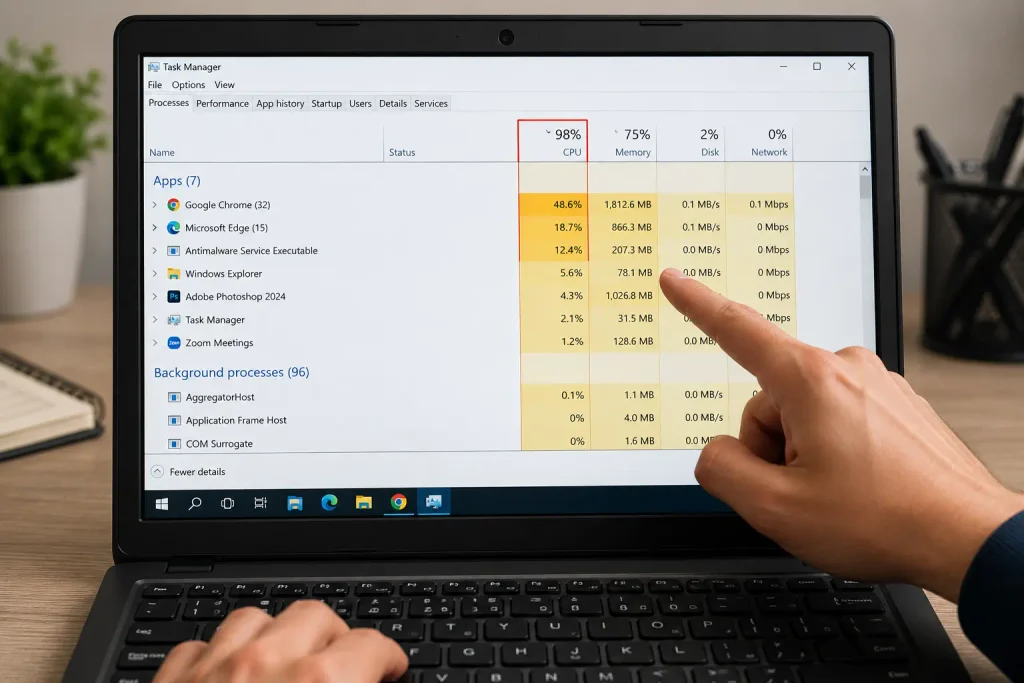
Running many applications, browser tabs, video calls, games, editing software, or background programs simultaneously can increase CPU and memory usage.
Close applications you are not currently using.
Also reduce unnecessary browser tabs and check whether any program is consuming unusually high system resources.
If your laptop also feels slow while browsing, check our guide on how to fix slow Wi-Fi for additional troubleshooting tips.
On Windows
Open Task Manager and check the Processes section for applications using high CPU, memory, or other resources.
On macOS
Open Activity Monitor and review CPU usage to identify processes consuming excessive resources.
Do not terminate system processes unless you understand what they do.
If your laptop keeps overheating while several demanding programs are open, reducing the workload may quickly lower its temperature.
Best for: A laptop that becomes hot during multitasking, gaming, meetings, or heavy browser use.
4. Restart the Laptop
A restart sounds simple, but it can sometimes resolve temporary processes that are placing unnecessary load on the system.
Save your work and restart the computer normally.
After restarting, avoid immediately reopening every application. Instead, use the laptop with only the programs you need and observe the temperature.
If overheating disappears after the restart but gradually returns, a particular application or background process may be responsible.
When a laptop keeps overheating unexpectedly even during light use, restarting is a quick troubleshooting step worth trying.
Best for: Sudden overheating that started without an obvious hardware problem.
5. Check for Software and System Updates
Operating system, driver, firmware, and manufacturer updates can sometimes improve performance, power management, or cooling behavior.
Check your operating system for available updates and install appropriate updates from trusted sources.
For manufacturer-specific drivers or firmware, use your laptop manufacturer’s official support page rather than unknown third-party driver websites.
After installing updates, restart the computer if required.
Updates will not repair a physically damaged fan or blocked cooling system, but they can resolve certain software-related performance problems.
If your laptop keeps overheating after an operating system or software issue, keeping the system updated is an important troubleshooting step.
Best for: Laptops with outdated operating systems, drivers, or manufacturer software.
6. Reduce Heavy Workloads and Adjust Power Settings
Gaming, 3D rendering, video editing, compiling large projects, and other demanding workloads naturally produce more heat.
If overheating occurs only during demanding tasks, reducing the workload may help.
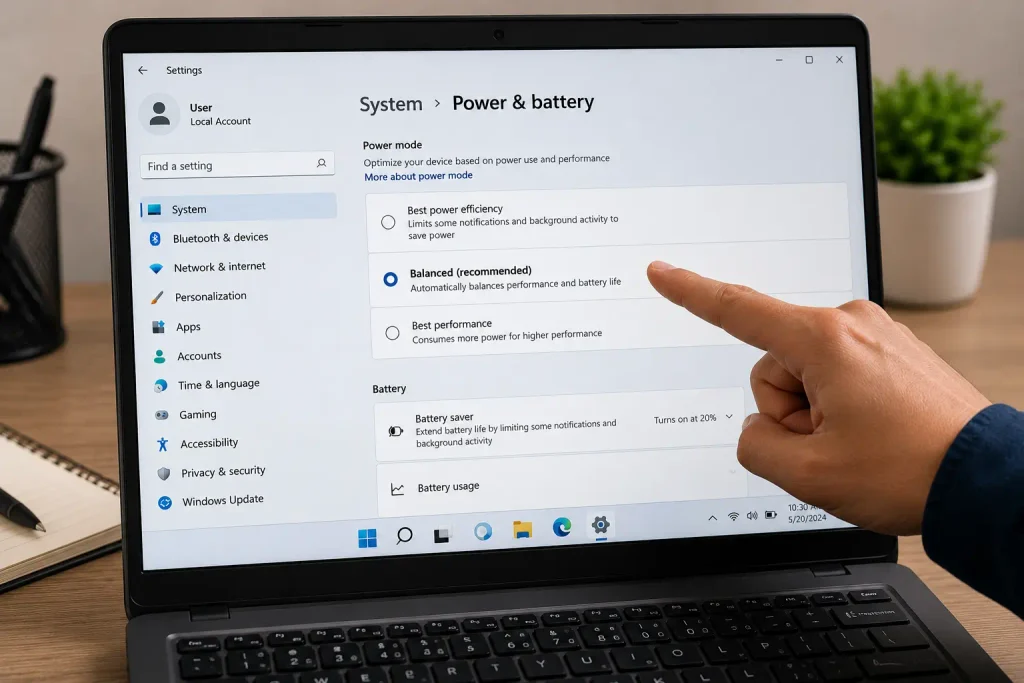
On supported systems, you can also review the laptop’s power or performance settings. A high-performance mode may allow the processor to consume more power and generate additional heat.
Try using a balanced or recommended power mode when maximum performance is unnecessary.
Reducing display brightness and closing unnecessary background applications can also decrease power consumption.
If your laptop keeps overheating during demanding workloads, these changes can reduce unnecessary heat without physically modifying the computer.
Best for: Gaming laptops and computers used for intensive applications.
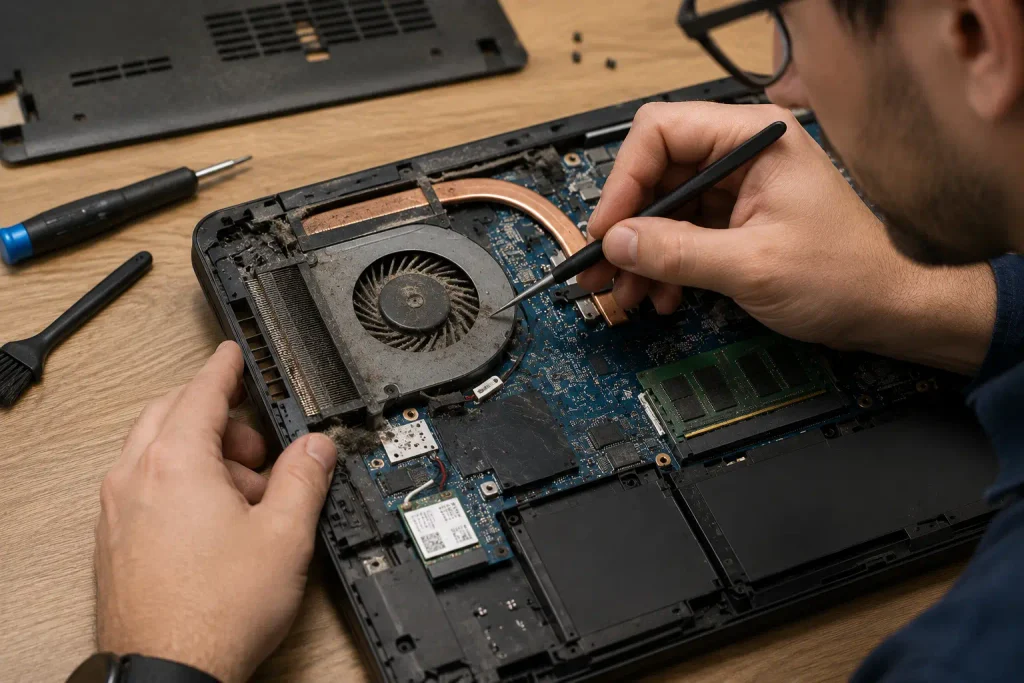
7. Have the Cooling Fan and Thermal System Inspected
If none of the previous solutions work, the problem may be inside the laptop.
The cooling fan can become clogged, damaged, or worn out. Thermal paste between the processor and heatsink can also degrade over time.
Possible warning signs include:
- Fan making grinding or rattling noises
- Little or no airflow from the exhaust vent
- Laptop becoming extremely hot very quickly
- Frequent thermal shutdowns
- Overheating even during light tasks
Internal laptop repairs require additional care because components can be easily damaged.
If your laptop keeps overheating despite clean external vents and a light workload, consider having the cooling system inspected by the laptop manufacturer or a qualified repair technician.
Best for: Persistent overheating, abnormal fan noises, or unexpected shutdowns.
What to Do If the Laptop Shuts Down Because of Heat
An unexpected shutdown may be the laptop’s protective response to excessive temperature.
If this happens, stop using the computer and allow it to cool on a hard, well-ventilated surface.
Do not immediately restart it repeatedly.
Once it has cooled, check the ventilation openings and consider what you were doing immediately before the shutdown.
If shutdowns continue during normal use, professional inspection is recommended.
A laptop keeps overheating and shutting down repeatedly should not be treated as a normal operating condition.
Important Safety Tips
Always shut down and unplug the laptop before cleaning its exterior vents.
Do not pour cleaning liquids into ventilation openings.
Avoid inserting metal objects or other tools through the vents.
If the laptop has a swollen battery, damaged casing, unusual chemical smell, smoke, or extreme localized heat, stop using it and seek appropriate professional assistance.
Opening a laptop can also affect warranty coverage depending on the manufacturer and model, so check the manufacturer’s instructions before attempting internal repairs.
How to Prevent Your Laptop From Overheating
Once the problem is solved, a few simple habits can help maintain proper airflow.
Use the laptop on a hard surface whenever possible, keep its ventilation openings clear, remove visible dust periodically, close applications you no longer need, and keep the operating system and trusted manufacturer software updated.
Also avoid leaving the laptop in very hot environments, such as inside a parked car.
Good airflow and reasonable system usage can reduce the chance that your laptop keeps overheating in the future.
When Should You Contact a Professional?
Consider professional help when basic troubleshooting does not improve the problem.
You should especially consider service if the laptop repeatedly shuts down, the cooling fan stops spinning, the fan makes unusual mechanical noises, or the device becomes extremely hot during simple tasks.
Internal cleaning, fan replacement, heatsink servicing, and thermal paste replacement generally require more technical knowledge than the basic fixes covered in this guide.
If your laptop keeps overheating after trying the safer external troubleshooting steps, professional diagnosis can help determine whether an internal component is responsible.
Frequently Asked Questions
Why is my laptop getting hot so quickly?
Blocked airflow, high CPU or GPU usage, dust buildup, demanding applications, or cooling-system problems can cause rapid heating. Start by placing the laptop on a hard surface and closing unnecessary applications.
Is it normal for a laptop to get hot?
Some warmth is normal, particularly during gaming, video editing, charging, or other demanding tasks. Excessive heat, repeated shutdowns, severe performance drops, or abnormal fan behavior may indicate a problem.
Can dust cause laptop overheating?
Yes. Dust around cooling vents and internal cooling components can restrict airflow. Keeping accessible ventilation openings clean can help the cooling system operate effectively.
Can too many browser tabs make a laptop hot?
They can contribute. Multiple active tabs and web applications may increase processor and memory usage, particularly if they contain videos, animations, meetings, or other demanding content.
Should I use a laptop cooling pad?
A cooling pad may provide additional airflow for some laptops, but it should not be used to hide an underlying problem such as blocked vents or a malfunctioning fan. Fix the cause of persistent overheating first.
Why does my laptop overheat while gaming?
Games can heavily use both the CPU and GPU, generating considerably more heat than basic web browsing. Proper ventilation, clean vents, suitable power settings, and a functioning cooling system become especially important during gaming.
What if my laptop keeps overheating after trying all these fixes?
If your laptop keeps overheating after you have improved airflow, cleaned accessible vents, reduced unnecessary workloads, restarted the system, and installed appropriate updates, the internal cooling system may need inspection.
Final Thoughts
A laptop that runs unusually hot does not always need an expensive repair. Start with simple steps such as moving it to a hard surface, cleaning accessible air vents, closing unnecessary programs, restarting the computer, and checking for trusted software updates.
For persistent problems, investigate power settings and consider having the fan and internal cooling system professionally inspected.
By addressing the underlying cause early, you can improve cooling, maintain performance, and reduce the chance that your laptop keeps overheating during everyday use.