
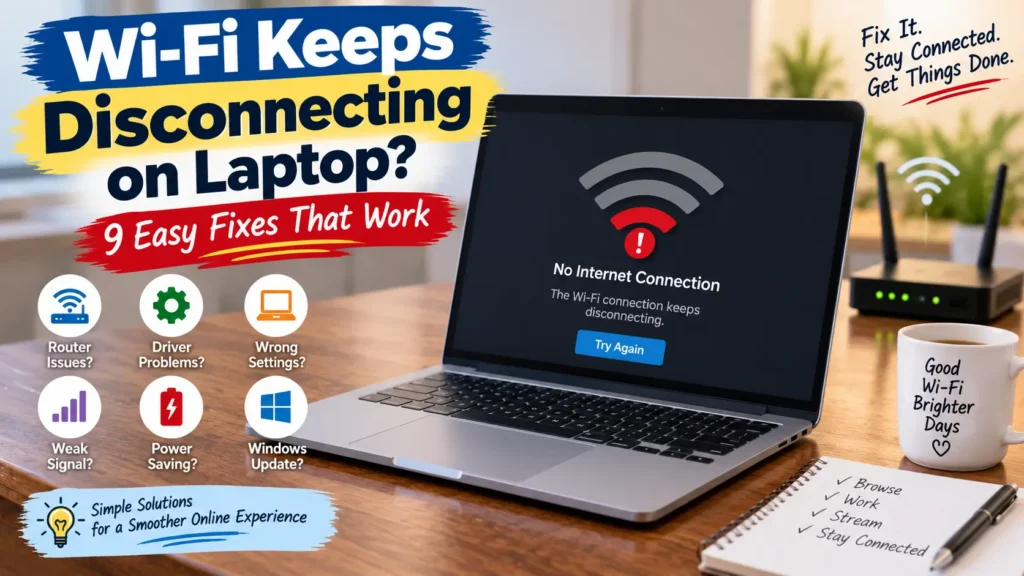
Is your Wi-Fi keeps disconnecting on laptop problem making it difficult to work, stream videos, attend meetings, or browse the web?
A laptop that repeatedly loses its Wi-Fi connection can be frustrating, especially when other devices in your home seem to work normally. The problem may come from your laptop’s Wi-Fi adapter, outdated drivers, power-saving settings, weak signal, router issues, or Windows network configuration.
The good news is that you can often fix the problem without replacing your laptop or router.
In this guide, we’ll go through 9 easy fixes, starting with simple troubleshooting and moving toward more advanced solutions.
Note: The steps below primarily apply to Windows 10 and Windows 11 laptops. Some menu names may vary slightly depending on your Windows version and laptop manufacturer.
Why Does Wi-Fi Keep Disconnecting on a Laptop?
There isn’t always one single reason for repeated Wi-Fi disconnections.
Common causes include:
- Weak Wi-Fi signal
- Router or modem problems
- Outdated or corrupted Wi-Fi drivers
- Wi-Fi adapter power-saving settings
- Incorrect network settings
- Windows network configuration problems
- Interference from other wireless devices
- Problems with the 2.4 GHz or 5 GHz band
- Router firmware or ISP issues
Before changing advanced settings, start with the simplest solutions first.
For more detailed troubleshooting, see Microsoft’s official guide to fixing Wi-Fi connection problems in Windows.
Wi-Fi Keeps Disconnecting on Laptop? 9 Easy Fixes
1. Restart Your Laptop and Wi-Fi Router
Start with the simplest solution.
A temporary software or network problem can sometimes cause repeated disconnections. Restarting both your laptop and router gives the devices a fresh connection.
Try this:
- Save your work and restart your laptop.
- Unplug your router from the power outlet.
- Wait about 30 seconds.
- Plug the router back in.
- Wait a few minutes for the Wi-Fi network to become available.
- Connect your laptop again.
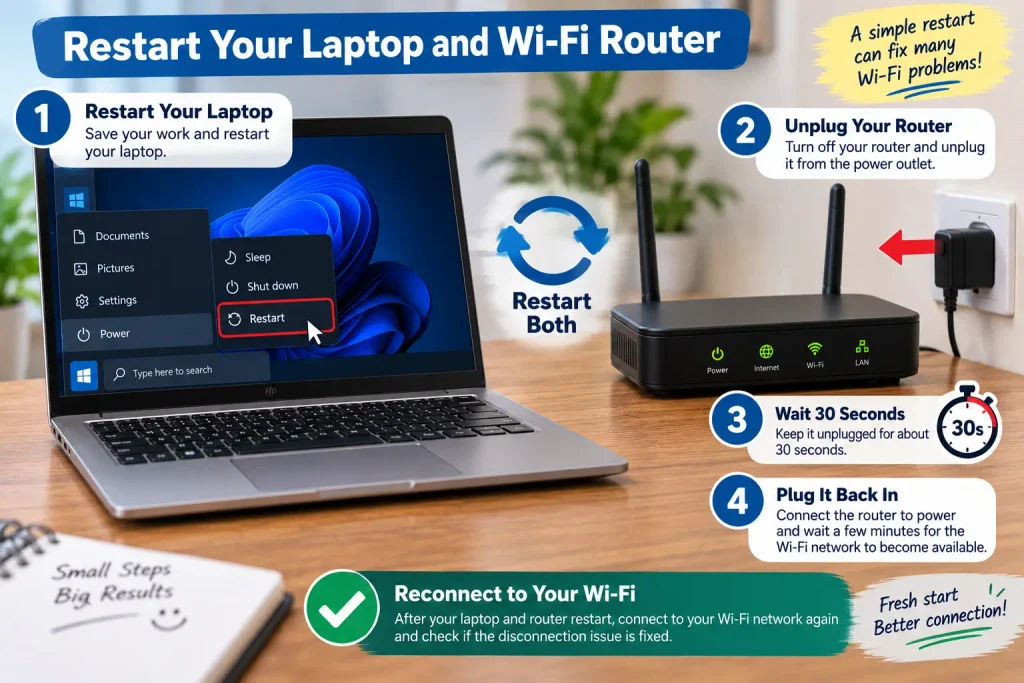
Microsoft also recommends restarting the modem and wireless router as an early troubleshooting step for Wi-Fi problems.
If your Wi-Fi remains stable after restarting, the problem may have been temporary.
2. Move Closer to the Wi-Fi Router
If your laptop is far away from the router, the signal may become weak or unstable.
Walls, floors, furniture, appliances, and other obstacles can also affect wireless performance.
Try moving your laptop closer to the router and see whether the connection becomes more stable.
If the disconnecting stops when you’re near the router, weak signal or interference could be part of the problem.
You can also test the connection in different areas of your home.
If possible, keep the router in a relatively open and central location rather than inside a cabinet or behind large objects.
3. Forget the Wi-Fi Network and Reconnect
Sometimes Windows can have trouble with saved wireless network information.
Forgetting the network and reconnecting can create a fresh connection.
On Windows:
- Open Settings.
- Select Network & internet.
- Select Wi-Fi.
- Open Manage known networks.
- Find your Wi-Fi network.
- Select Forget.
- Return to the available Wi-Fi networks.
- Select your network.
- Enter your Wi-Fi password and reconnect.
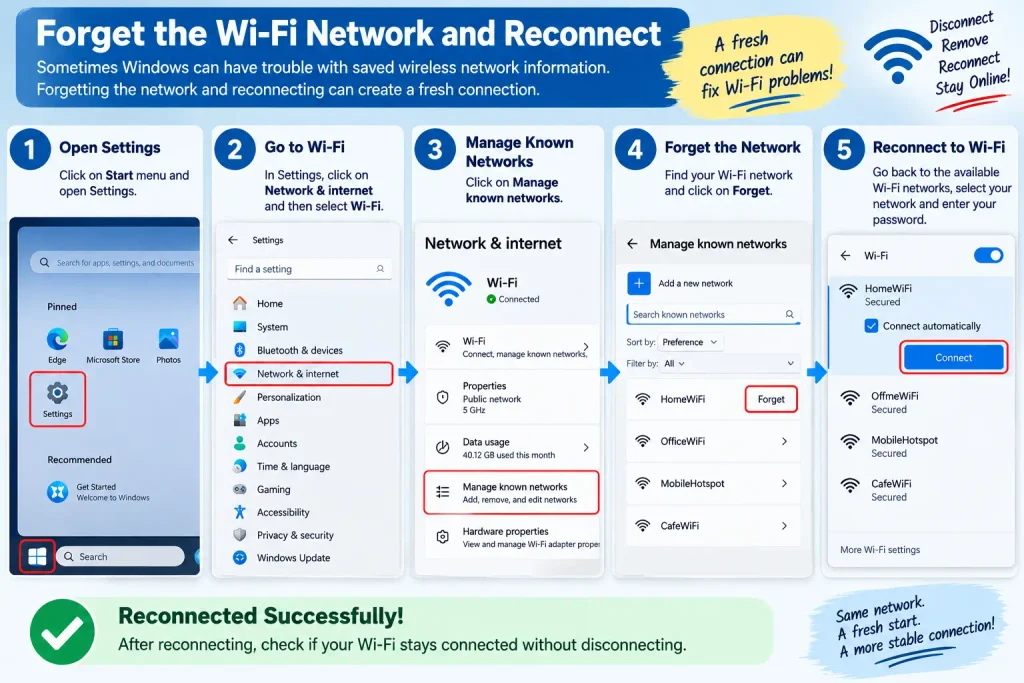
Microsoft recommends forgetting and reconnecting to the Wi-Fi network as part of its standard troubleshooting process.
If you don’t remember your Wi-Fi password, check it before forgetting the network.
4. Update or Reinstall Your Wi-Fi Driver
Your laptop’s Wi-Fi adapter depends on a driver to communicate properly with Windows.
An outdated, corrupted, or incompatible driver can sometimes cause connection problems.
To check the driver:
- Press Windows + X.
- Select Device Manager.
- Expand Network adapters.
- Find your wireless network adapter.
- Right-click it.
- Select Update driver.
- Follow the instructions provided by Windows.
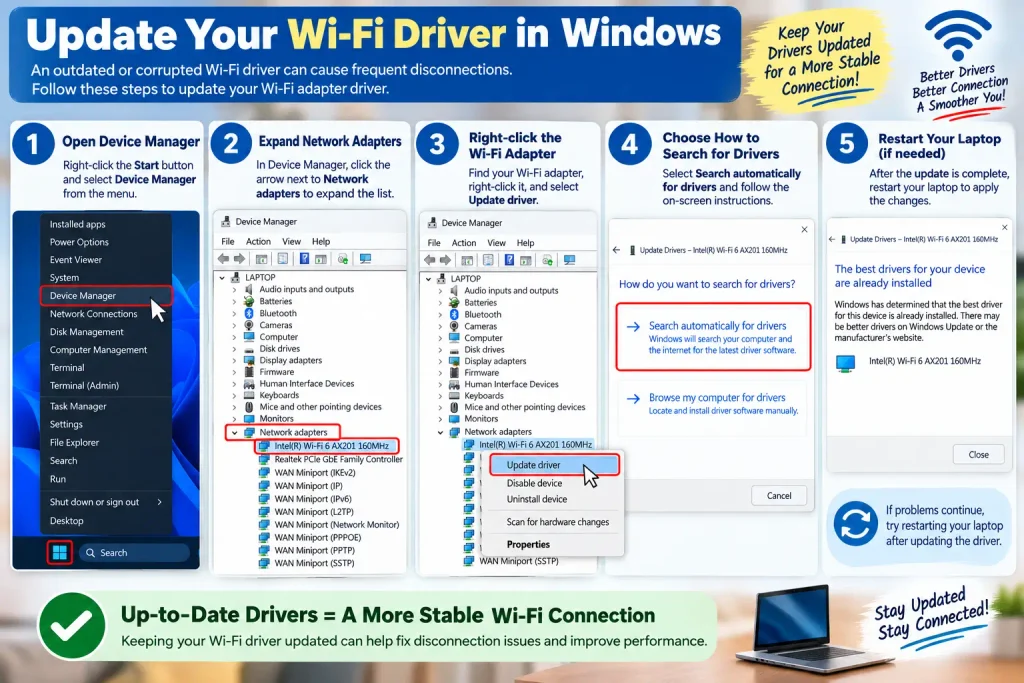
If updating doesn’t help and the problem started after a Windows or driver update, reinstalling the network adapter driver may be another option.
Microsoft recommends uninstalling the network adapter and restarting the computer when earlier troubleshooting steps haven’t solved the problem. Windows can then attempt to reinstall the adapter driver.
Important: If you plan to uninstall the driver, it’s a good idea to have the correct driver available from your laptop manufacturer’s website first, especially if the laptop may not reconnect to the internet afterward.
5. Turn Off Wi-Fi Adapter Power Saving
Windows may use power-saving settings to reduce energy consumption.
On some laptops, these settings can contribute to Wi-Fi connection problems.
To check the setting:
- Open Device Manager.
- Expand Network adapters.
- Right-click your Wi-Fi adapter.
- Select Properties.
- Open the Power Management tab.
- Look for Allow the computer to turn off this device to save power.
- If the option is enabled, try unchecking it.
- Click OK.
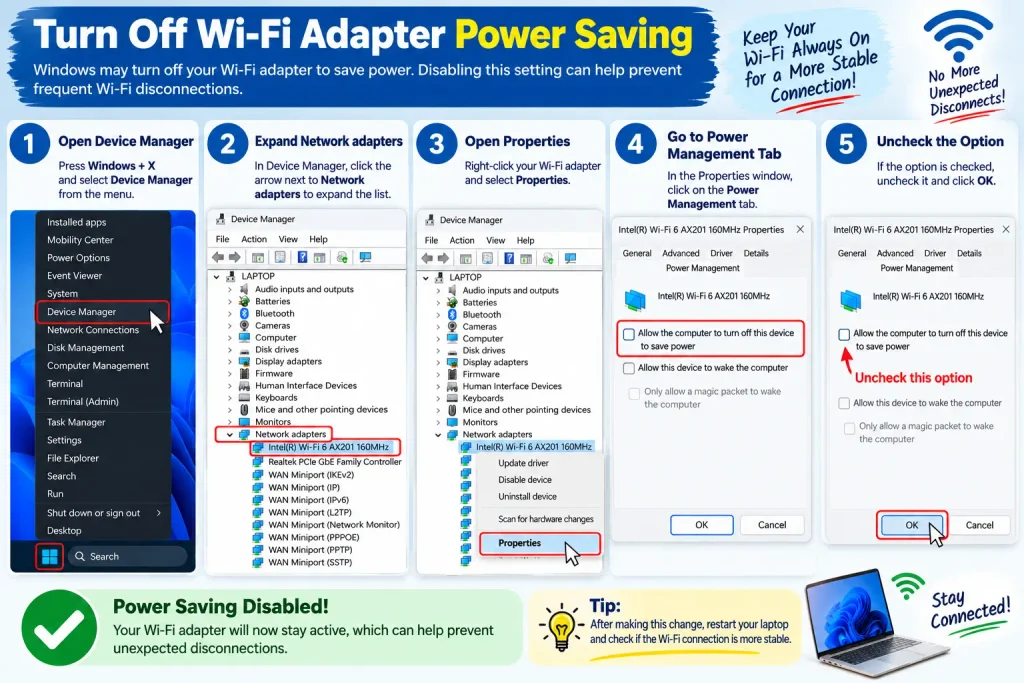
Microsoft includes this as a troubleshooting step for Wi-Fi adapter problems.
Restart your laptop afterward and check whether the Wi-Fi remains connected.
6. Run the Windows Network Troubleshooter
Windows includes built-in troubleshooting tools that can check common network problems.
On newer Windows 11 systems, Microsoft recommends using the automated network and internet troubleshooter through the Get Help app.
You can start by opening Windows Search and searching for:
Get Help
Then search for Wi-Fi connection problems and follow the recommended troubleshooting steps.
The troubleshooter may detect configuration or connectivity problems and suggest corrective actions.
If it finds a problem, apply the recommended fix and test your connection again.
7. Try a Different Wi-Fi Frequency
Many modern routers provide both 2.4 GHz and 5 GHz Wi-Fi networks.
Depending on your home layout and router, one band may work more reliably than the other.
For example, 5 GHz can generally provide higher speeds at shorter range, while 2.4 GHz can often travel farther but may experience more interference.
If your router provides separate networks for both bands, try connecting your laptop to the other one.
Microsoft specifically recommends trying a different frequency band when troubleshooting Wi-Fi connection problems.
If one band works consistently while the other keeps disconnecting, the issue may be related to signal range, interference, or compatibility.
8. Reset Your Network Settings
If the previous fixes haven’t worked, Windows provides a Network reset option.
This should be treated as a later troubleshooting step because it removes installed network adapters and resets their settings to defaults.
On Windows 11:
- Open Settings.
- Select Network & internet.
- Select Advanced network settings.
- Choose Network reset.
- Select Reset now.
- Confirm the reset.
- Restart the laptop if prompted.
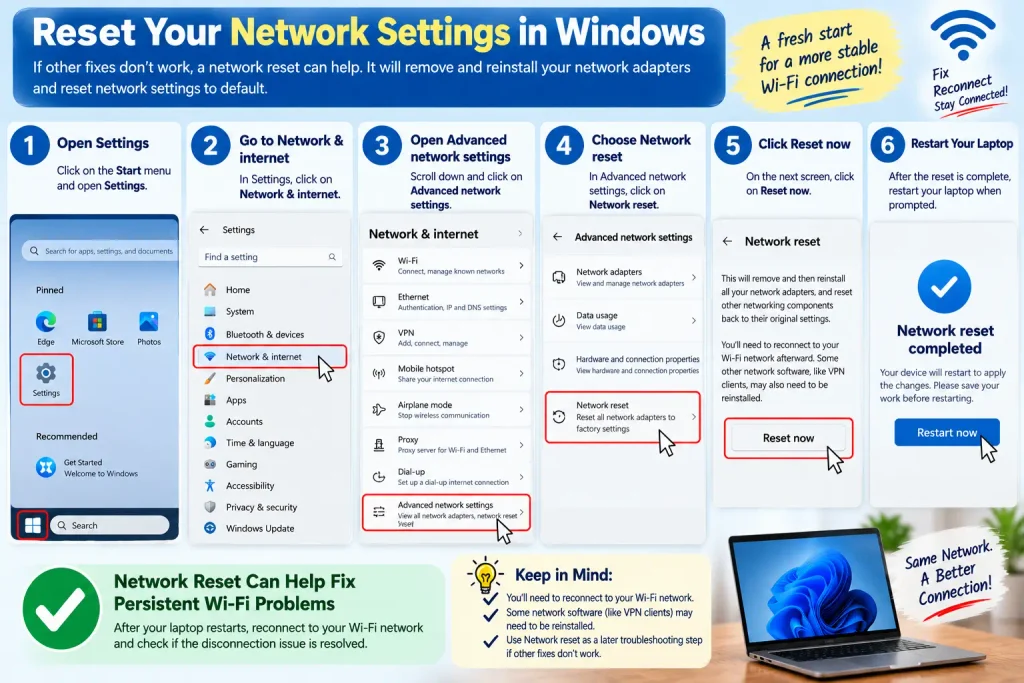
After the reset, you’ll need to reconnect to your Wi-Fi network.
You may also need to configure or reinstall certain networking software, such as VPN clients or virtual network adapters.
Because Network reset changes your network configuration, don’t use it as the first solution.
9. Check Whether the Problem Is Your Laptop or Router
If your laptop continues disconnecting, test another device on the same Wi-Fi network.
For example, connect your phone or another laptop to the same Wi-Fi.
If other devices also disconnect:
The problem may be related to the router, modem, Wi-Fi signal, or internet provider.
If other devices remain connected:
The problem is more likely related to your laptop, its Wi-Fi adapter, driver, or Windows configuration.
Microsoft recommends testing the same Wi-Fi network on another device as part of the troubleshooting process.
This simple test can save you a lot of time because it helps identify which side of the connection is causing the problem.
How to Tell If the Problem Is Your Laptop or Wi-Fi Router
Use this quick test:
| What happens? | Likely problem |
|---|---|
| Only your laptop disconnects | Laptop, driver, adapter, or Windows settings |
| All devices disconnect | Router, modem, ISP, or Wi-Fi interference |
| Laptop works near router but not farther away | Weak signal or interference |
| Laptop disconnects after sleep | Power-saving or adapter settings |
| Problem started after an update | Driver or Windows-related issue |
| 2.4 GHz works but 5 GHz doesn’t | Range, interference, or compatibility |
| Wi-Fi connects but says “No Internet” | Router, modem, DNS, or ISP issue |
This isn’t a definitive diagnosis, but it can help you narrow down the cause before trying more advanced solutions.
What to Do If Wi-Fi Still Keeps Disconnecting
If none of the nine fixes work, you can try a few additional troubleshooting steps.
First, check whether your laptop manufacturer has a newer Wi-Fi driver available for your exact model.
You can also check for Windows updates.
Go to:
Settings → Windows Update → Check for updates
Microsoft recommends checking for available Windows updates when troubleshooting network problems.
If you’re comfortable using Command Prompt, Windows also provides commands that can reset networking components, renew the IP address, and clear the DNS cache:
netsh winsock reset
netsh int ip reset
ipconfig /release
ipconfig /renew
ipconfig /flushdns
Open Command Prompt as administrator and run the commands one at a time.
Restart the laptop afterward and test the connection.
How to Prevent Wi-Fi Disconnects on a Laptop
Once your Wi-Fi is stable again, a few habits can help prevent recurring problems.
Keep Windows and drivers updated
Updates can include bug fixes and driver improvements.
Keep your router in a good location
Avoid placing it inside cabinets, behind large furniture, or in areas surrounded by unnecessary obstacles.
Avoid unnecessary Wi-Fi interference
Some household electronics and neighboring wireless networks can interfere with Wi-Fi performance.
Restart your router occasionally
If your router has been running continuously for a long time and starts behaving strangely, restarting it may help.
Keep track of when the problem happens
Notice whether disconnects happen during gaming, video calls, sleep/wake, when you’re far from the router, or at particular times of day.
The pattern can provide a useful clue.
When Should You Contact Your Internet Provider?
Contact your internet provider if:
- Multiple devices repeatedly lose internet access.
- Your router frequently loses its internet connection.
- The problem occurs even when using Ethernet.
- There is a known outage in your area.
- Your modem shows unusual warning lights.
- Restarting the equipment only fixes the problem temporarily.
If your laptop works normally on other Wi-Fi networks but repeatedly loses connection only on your home network, the router or home network configuration may need further investigation.
FAQs
Why does my laptop keep disconnecting from Wi-Fi?
Common causes include weak signal, router problems, outdated drivers, power-saving settings, wireless interference, and Windows network configuration issues.
Why does Wi-Fi disconnect when my laptop goes to sleep?
Power-saving settings or the Wi-Fi adapter’s power-management behavior can sometimes contribute to connection problems after sleep. Checking the adapter’s power-management settings is one troubleshooting step.
Should I reset my network settings?
Network reset can help when other troubleshooting steps fail, but it should generally be used later because it removes network adapters and resets network settings.
Why does Wi-Fi work on my phone but not my laptop?
If your phone stays connected while your laptop disconnects, the problem is more likely related to the laptop’s Wi-Fi adapter, driver, power settings, or Windows configuration.
Why does my laptop disconnect from Wi-Fi when I’m far from the router?
A weak signal can cause unstable connections. Try moving closer to the router or connecting to a Wi-Fi band that provides better coverage in that area.
Can an outdated Wi-Fi driver cause disconnects?
Yes. Driver problems can affect how your laptop communicates with the wireless adapter. Updating or reinstalling the correct driver can sometimes resolve persistent connection problems.
Final Thoughts
If your Wi-Fi keeps disconnecting on laptop, don’t immediately assume that your router or laptop needs to be replaced.
Start with simple steps such as restarting the router, moving closer to it, and forgetting and reconnecting to the Wi-Fi network. If the problem continues, check the Wi-Fi driver, power-saving settings, frequency band, and Windows network configuration.
The most useful troubleshooting step is often figuring out whether the problem follows the laptop or affects every device on the network.
Once you know where the problem is coming from, finding the right solution becomes much easier.
For official Windows troubleshooting guidance, you can also refer to Microsoft’s current Wi-Fi troubleshooting documentation.