

Introduction
Laptop won’t connect to Wi-Fi? It can be frustrating when your wireless network appears in the list but refuses to connect—or when the Wi-Fi option disappears completely.
Simple issues like Airplane Mode or a wrong password may be the source of the issue, but your router, network settings, Wi-Fi device, or driver may also be to blame
Fortunately, you can check a lot of common issues on your own before calling your internet provider or taking your laptop in for repair.
In this guide, we’ll go through 10 easy fixes to try when your laptop won’t connect to Wi-Fi.
Quick safety note: Don’t alter options you don’t understand if you need to modify complex router or network settings. Before changing network settings, get in touch with the network administrator if your employer or school is in charge of the connection.
Why Won’t My Laptop Connect to Wi-Fi?
Several things can prevent a laptop from connecting to a wireless network, including:
- Wi-Fi being turned off
- Airplane Mode being enabled
- Incorrect Wi-Fi password
- Temporary router problems
- Weak signal or wireless interference
- Network configuration problems
- Outdated or faulty Wi-Fi drivers
- Problems with the laptop’s wireless adapter
- Router frequency or compatibility issues
- Internet service outages
For additional Windows troubleshooting steps, see Microsoft’s official guide to fixing Wi-Fi connection issues in Windows.
Before trying complicated solutions, start with the easiest fixes below.
1. Make Sure Wi-Fi Is Turned On
Start by checking whether Wi-Fi is actually enabled on your laptop.
Make sure Wi-Fi is enabled and choose the Network, Sound, or Battery icons from the taskbar in Windows. Next, see if the list of available networks includes your Wi-Fi network.
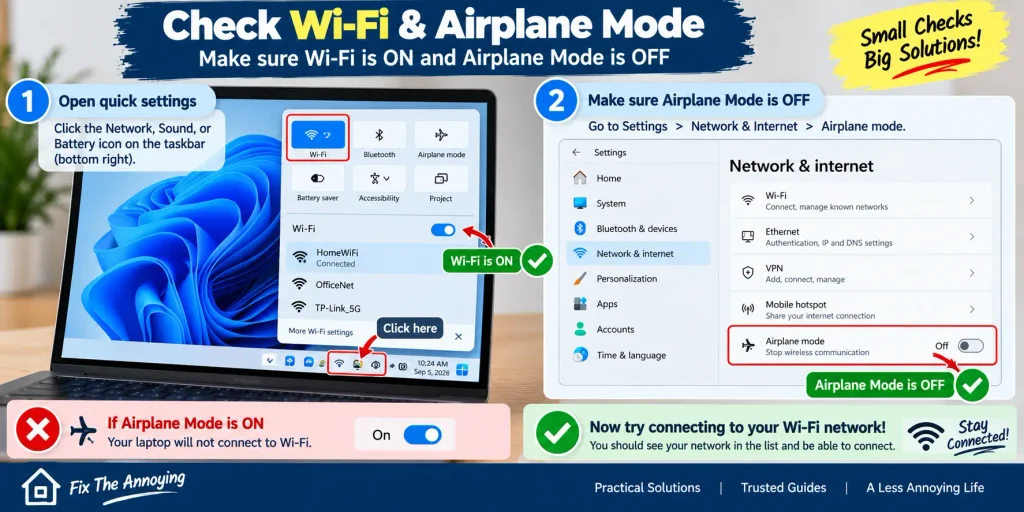
If Wi-Fi is already on but your network isn’t connecting, move to the next fix.
Also check for a physical Wi-Fi switch
Wi-Fi can be turned off on some older computers using a hardware wireless switch or a keyboard key.
Make sure the key hasn’t been turned off by looking for one with an antenna or wifi sign.
2. Turn Off Airplane Mode
Airplane Mode can prevent your laptop from connecting to Wi-Fi.
On Windows, open:
Settings → Network & Internet → Airplane mode
Make sure Airplane mode is Off.
Next, try connecting to your network after turning Wi-Fi off and back on.
When troubleshooting Wi-Fi connectivity issues, Microsoft specifically advises checking Airplane Mode.
3. Check Your Wi-Fi Password
If your laptop sees the network but won’t connect, make sure you’re entering the correct password.
Wi-Fi passwords are usually case-sensitive, so check:
- Capital letters
- Numbers
- Special characters
- Spaces
- Similar-looking characters
Your laptop might still have the previous router password stored if you recently changed it.
Reconnecting after forgetting the network can be beneficial in that case.
4. Forget the Wi-Fi Network and Reconnect
A saved Wi-Fi profile can sometimes become corrupted or contain outdated connection information.
On Windows, go to:
Settings → Network & Internet → Wi-Fi → Manage known networks
Select your Wi-Fi network and choose Forget.
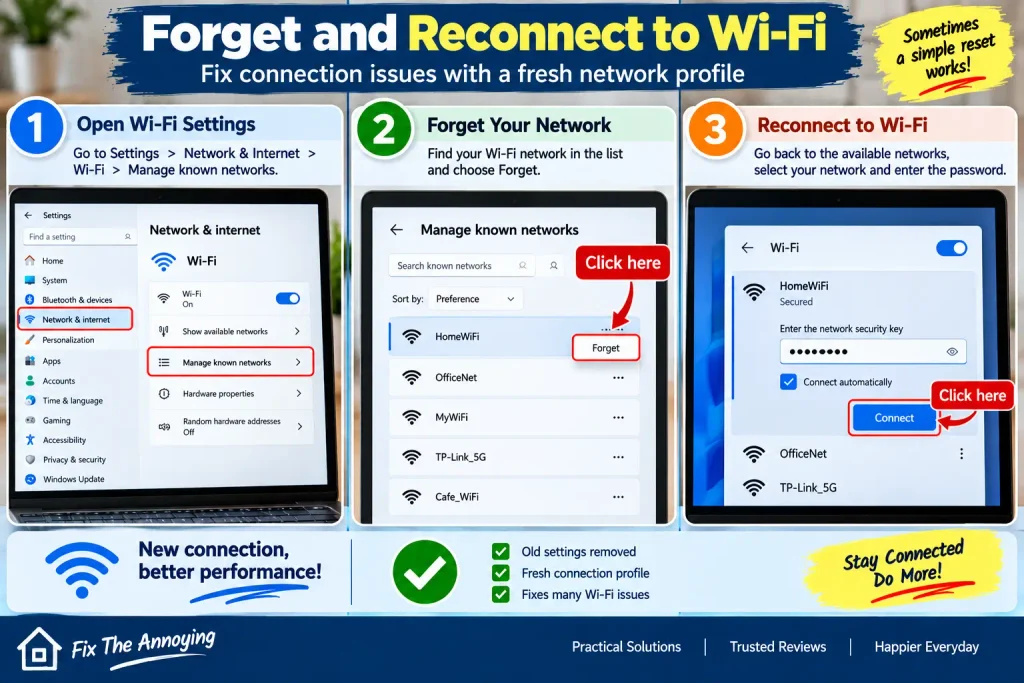
Next, go back to the Wi-Fi networks that are available, choose your network once more, input the password, and re-connect. One common troubleshooting procedure listed by Microsoft is to forget and reconnect to the network.
Why this can help
Rather of using the previous saved settings, your laptop generates a new connection profile.
5. Restart Your Router and Laptop
Sometimes the simplest solution works.
First, save your work and restart your laptop.
Then restart your router:
- Turn off or unplug the router.
- Wait about 30 seconds.
- Plug it back in.
- Wait for the router lights to stabilize.
- Try connecting your laptop again.
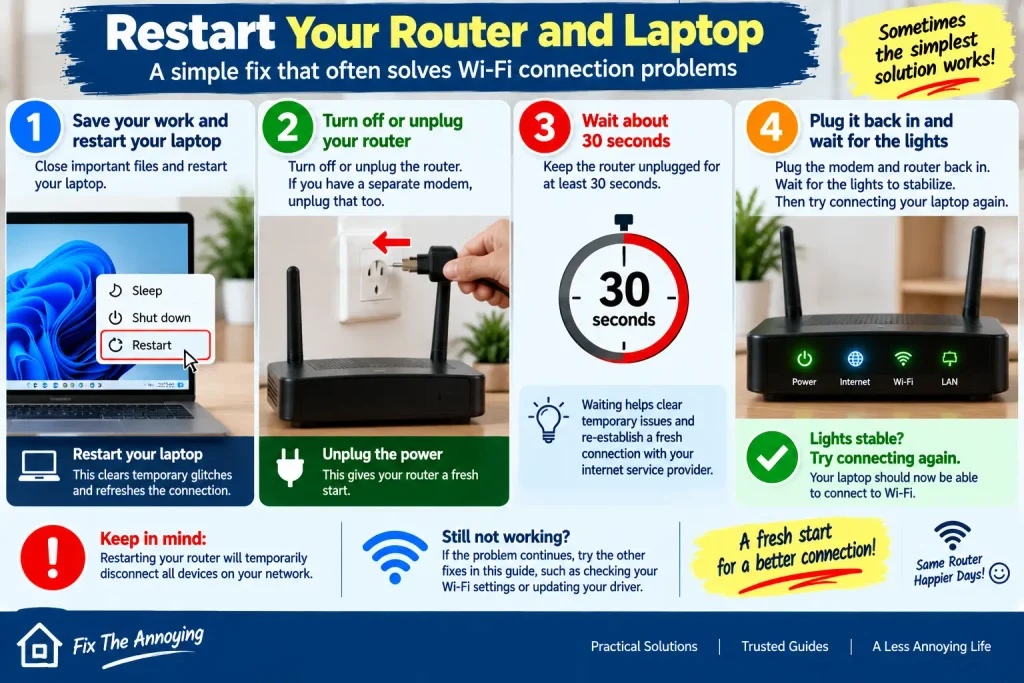
Because it can establish a new connection to the internet service provider, Microsoft advises resetting the modem and router.
You might need to restart both your modem and router if they are different devices.
6. Move Closer to the Router
If there is too much interference or a weak Wi-Fi signal, your laptop might not be able to connect.
Try reconnecting after getting closer to the router.
Additionally, look for any sources of interference between your laptop and router, such as thick walls or bulky appliances.
Try connecting to the other available band if your router offers both 2.4 GHz and 5 GHz networks. When debugging specific Wi-Fi connection issues, Microsoft also suggests experimenting with a different frequency.
A simple test
Try connecting another phone or laptop to the same Wi-Fi network.
- Other devices also can’t connect: the problem may be with the router or internet service.
- Other devices connect normally: the problem is more likely related to your laptop.
7. Run the Windows Network Troubleshooter
Allow Windows’ built-in troubleshooting tools to verify the connection.
Microsoft advises using the Get Help app to launch the automated Network and Internet troubleshooter on more recent versions of Windows.
The troubleshooter can assist in locating typical network connectivity issues.
Try reconnecting to Wi-Fi once it’s finished.
8. Update or Reinstall the Wi-Fi Driver
Your laptop’s Wi-Fi adapter depends on a driver to communicate correctly with Windows.
A damaged, outdated, or incompatible driver can cause connection problems.
To check the adapter:
- Search for Device Manager.
- Open Network adapters.
- Find your wireless network adapter.
- Right-click it.
- Check for available driver updates.
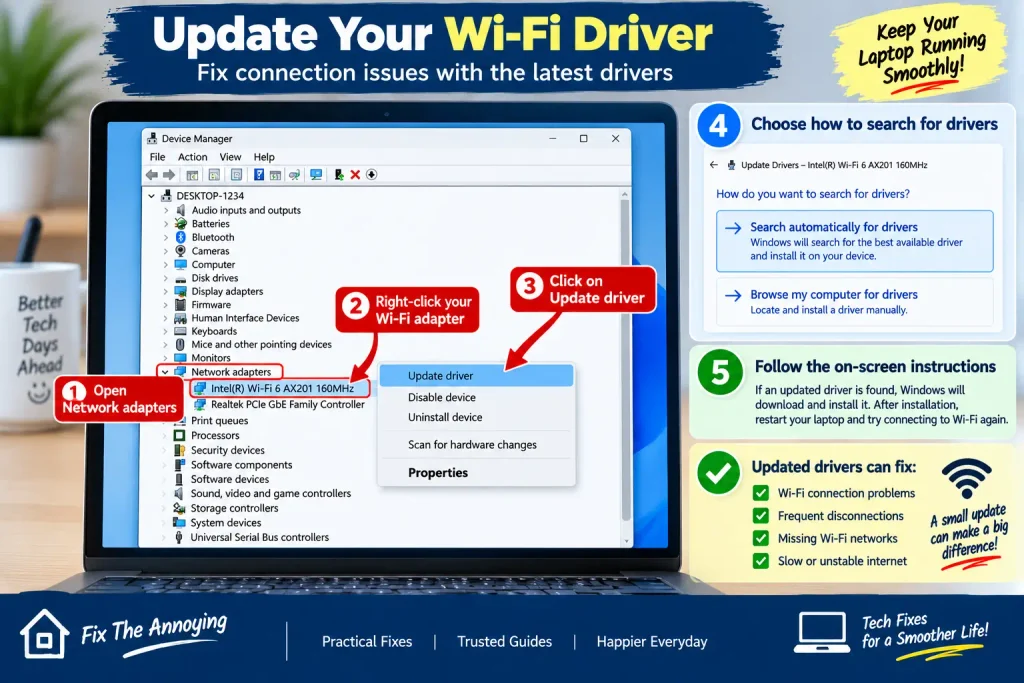
Reinstalling the network adapter driver might be helpful if the issue began following an update or if the adapter is acting strangely. Microsoft points out that after restarting the computer, Windows can reinstall the adapter.
Important: If Windows doesn’t replace a driver automatically, make sure you have a way to get the correct driver from the manufacturer’s website before deleting it.
9. Reset Network Settings
A network reset might occasionally resolve persistent setup issues if you’ve attempted the easier fixes and your laptop still won’t connect.
On Windows 11, go to:
Settings → Network & Internet → Advanced network settings → Network reset
Then select Reset now.
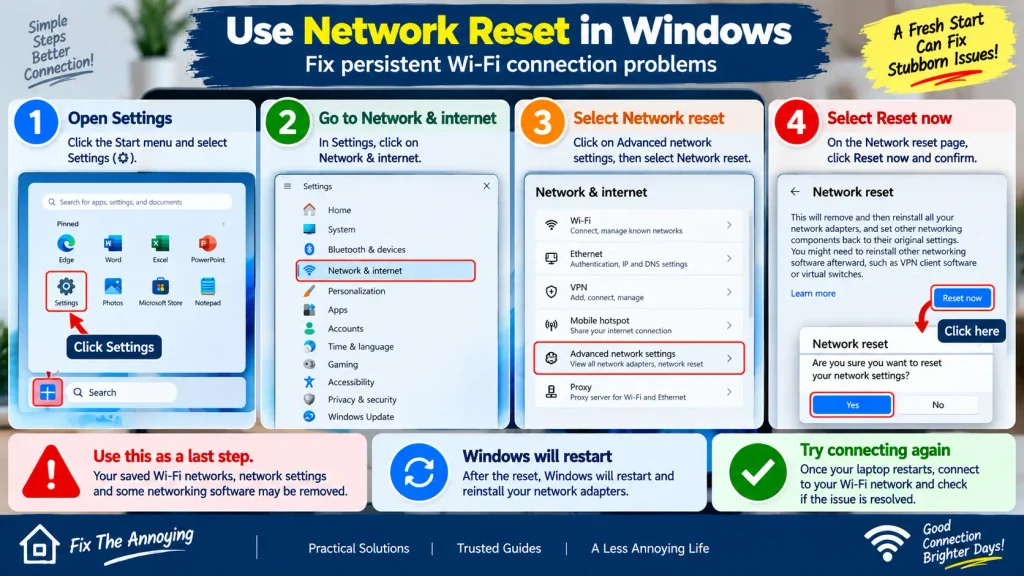
Because Network Reset disables installed network adapters and resets their settings to default, Microsoft suggests using it as a subsequent troubleshooting step.
Before using Network Reset
Remember that you might need to modify some networking software, including some VPN apps, and re-connect to your Wi-Fi networks.
Therefore, try the easier fixes mentioned instead of using this step first.
10. Check Whether Your Internet Service Is Down
It’s possible that your laptop is successfully connecting to the router even when the internet connection isn’t working.
Try using the same Wi-Fi network to connect a different device, such your phone.
If multiple devices cannot access the internet, the problem may be with:
- Your router
- Your modem
- Your internet service provider
- A temporary service outage
If your laptop isn’t working properly but other devices are, concentrate your troubleshooting efforts on the laptop.
What If the Wi-Fi Option Is Missing Completely?
The issue might not be the same as a typical connection failure if you are unable to view any Wi-Fi options.
Possible causes include:
- Wi-Fi being disabled
- A disabled network adapter
- A missing or faulty driver
- A physical wireless switch being turned off
- A problem with the Wi-Fi adapter
Microsoft advises making sure the wireless adapter is activated by checking Device Manager → Network adapters. Installing the proper driver from the laptop manufacturer’s website could be necessary if the adapter isn’t identified at all.
What If Your Laptop Connects but Says “No Internet”?
This is slightly different from “Laptop won’t connect to Wi-Fi.”
Even if your laptop connects to the router properly, it might not be able to access the internet.
Try:
- Disconnect and reconnect to Wi-Fi.
- Restart the router.
- Try another device on the same network.
- Forget and reconnect to the Wi-Fi network.
- Check for a service outage.
- Try the network troubleshooting steps above.
Get in touch with your internet provider if every device connected to the network is experiencing the same issue.
If your laptop connects to Wi-Fi but keeps dropping the connection, see our guide on [Wi-Fi Keeps Disconnecting on Laptop] for additional troubleshooting steps.
What If You’re Using a Mac?
On macOS, the procedures are a little different.
Apple suggests utilizing Wireless Diagnostics, rebooting network equipment, checking Wi-Fi status, and determining whether the issue is with the internet connection rather than just Wi-Fi.
When accessible, the Wi-Fi menu on a Mac allows you to view Wi-Fi Recommendations.
If your Mac is unable to join to the same network while another device can, pay attention to the Mac’s Wi-Fi and network settings.
Mac users can also refer to Apple’s official Network settings guide for additional Wi-Fi and network troubleshooting information.
When Should You Contact Your Internet Provider?
Contact your ISP if:
- Multiple devices cannot connect.
- The router shows an unusual error or warning light.
- Your internet service appears to be down.
- Restarting the router doesn’t help.
- You suspect an outage in your area.
The ISP might not be the issue if your laptop is the only device experiencing the issue while other devices are connecting normally.
How to Prevent Wi-Fi Connection Problems
You can reduce future connection problems by:
- Keeping Windows or macOS updated.
- Keeping your Wi-Fi driver updated.
- Keeping the router firmware updated.
- Placing the router in a suitable location.
- Avoiding unnecessary network software.
- Restarting your router occasionally when problems occur.
- Keeping your laptop’s Wi-Fi settings organized.
FAQs
Why won’t my laptop connect to Wi-Fi but my phone will?
Your laptop’s Wi-Fi settings, saved network profile, adapter, or driver are more likely to be the issue if your phone connects normally but your laptop doesn’t.
Why does my laptop see Wi-Fi but not connect?
Incorrect passwords, corrupted stored network profiles, poor signal strength, router troubles, and Wi-Fi adaptor problems are common culprits.
Should I restart my router if my laptop won’t connect?
Indeed. One of the easiest troubleshooting techniques is to restart the router, which can fix transient connection issues.
Should I reset network settings?
Since Network Reset resets network adapters and settings, it should usually be performed after more straightforward troubleshooting methods. However, it can help with persistent Windows network issues.
Why does my laptop say “No Internet” when Wi-Fi is connected?
Even when your laptop is linked to the router, it might not be able to access the internet. To find out if the issue impacts the entire network, check another device connected to the same Wi-Fi network.
Final Thoughts
When your laptop won’t connect to Wi-Fi, don’t immediately assume that the router or laptop hardware is broken.
Make sure your password is right, check that Wi-Fi and Airplane Mode are set correctly, forget and rejoin to the network, then restart the router.
Proceed to driver troubleshooting, network diagnostics, and network reset if those steps prove ineffective. Many common Wi-Fi connection issues can be resolved without expert assistance by using a methodical approach.