Is your laptop keeps freezing problem happening while you’re browsing, working, watching videos, or opening applications?
A frozen laptop can be frustrating, especially when the mouse stops moving, apps become unresponsive, or the entire screen stops responding.
The good news is that occasional freezing doesn’t always mean your laptop has a serious hardware problem.
Common causes include too many background apps, low storage space, overheating, outdated software or drivers, malware, memory limitations, and hardware problems. Microsoft also recommends checking storage, startup apps, updates and malware when troubleshooting Windows performance problems.
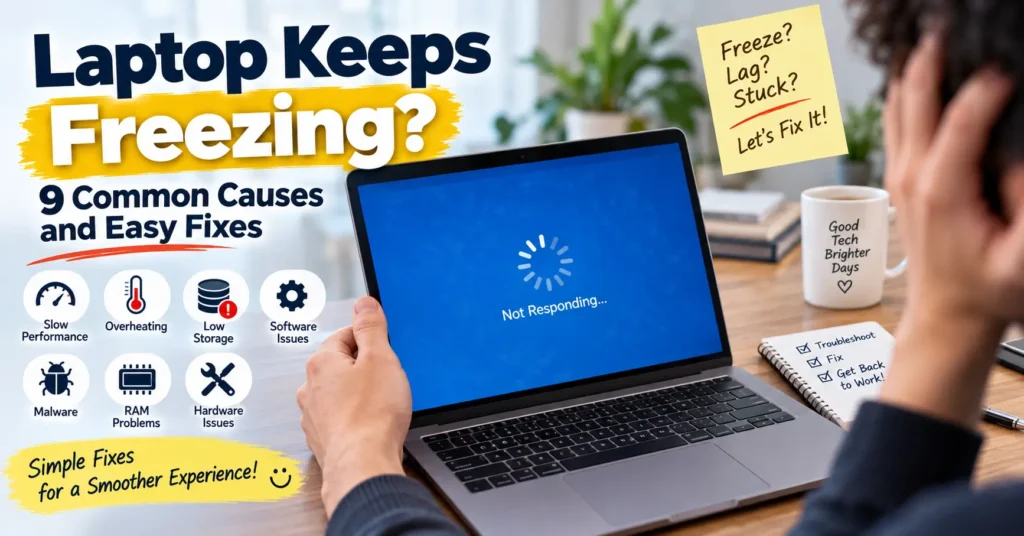
In this guide, we’ll cover 9 common reasons why a laptop keeps freezing and what you can do to fix the problem.
Why Does My Laptop Keep Freezing?
A laptop can freeze for many different reasons.
Some of the most common causes are:
- Too many programs running at once
- Low available RAM
- Almost-full storage
- Overheating
- Outdated Windows or macOS
- Outdated or problematic drivers
- Malware or unwanted software
- A problematic application
- Failing hardware such as RAM or a storage drive
The important thing is to start with the simplest fixes before moving to more advanced troubleshooting.
1. Restart Your Laptop
It sounds simple, but restarting your laptop is one of the first things you should try.
Temporary software problems, stuck processes and background tasks can sometimes cause Windows or an application to become unresponsive.
If your laptop is still responding:
- Save your work.
- Close your open applications.
- Select Start → Power → Restart on Windows.
- On a Mac, choose Apple menu → Restart.
If only one application is frozen, you may not need to restart the entire laptop.
On Mac, Apple recommends force-quitting an unresponsive application and then restarting the Mac if necessary.
If the entire laptop is frozen
If nothing responds, you may need to hold the power button until the laptop shuts down.
Important: A forced shutdown can cause you to lose unsaved work, so use it only when normal controls aren’t responding.
2. Close Unnecessary Programs and Browser Tabs
Your laptop may freeze when too many programs or browser tabs are running at the same time.
This is especially common on laptops with limited RAM.
For example, you might have:
- Chrome with many tabs
- Photoshop
- Spotify
- Microsoft Word
- Video calls
- Cloud-sync applications
- Background utilities
all running simultaneously.
What to do on Windows:
Press:
Ctrl + Shift + Esc
to open Task Manager.
Look at the CPU, Memory and Disk usage.
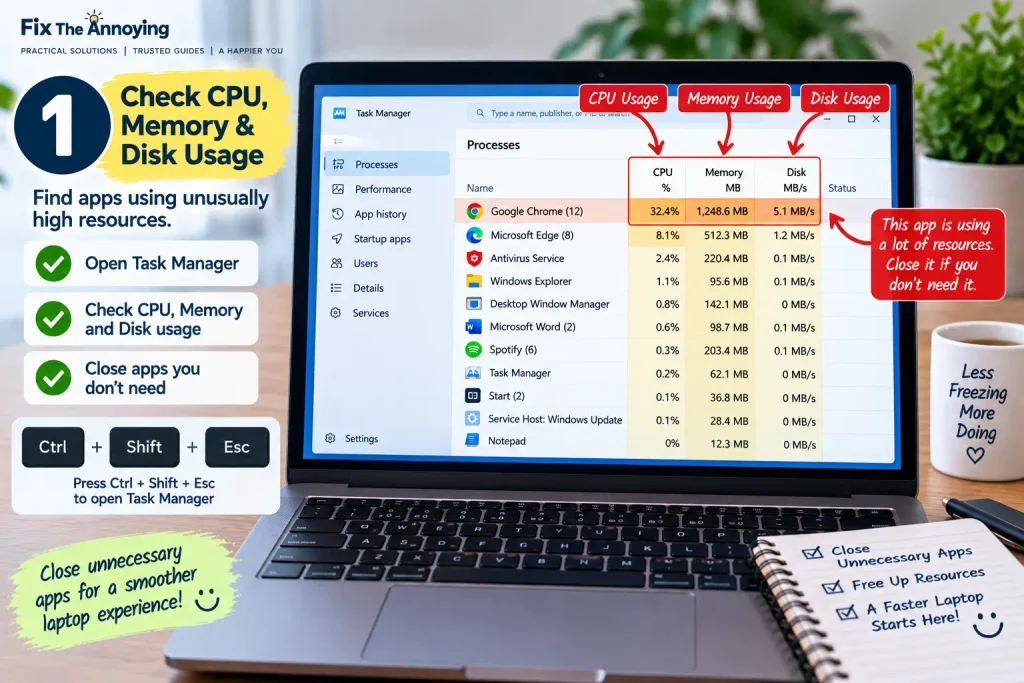
If one application is consuming an unusually large amount of resources, close it if you don’t need it.
Tip
Don’t randomly end Windows system processes. If you don’t recognize a process, search for its name before stopping it.
3. Free Up Storage Space
A nearly full drive can contribute to performance problems.
Microsoft specifically recommends freeing up disk space and using Storage Sense as part of Windows performance troubleshooting.
Check your storage on Windows:
Go to:
Settings → System → Storage
Look at how much free space is available.
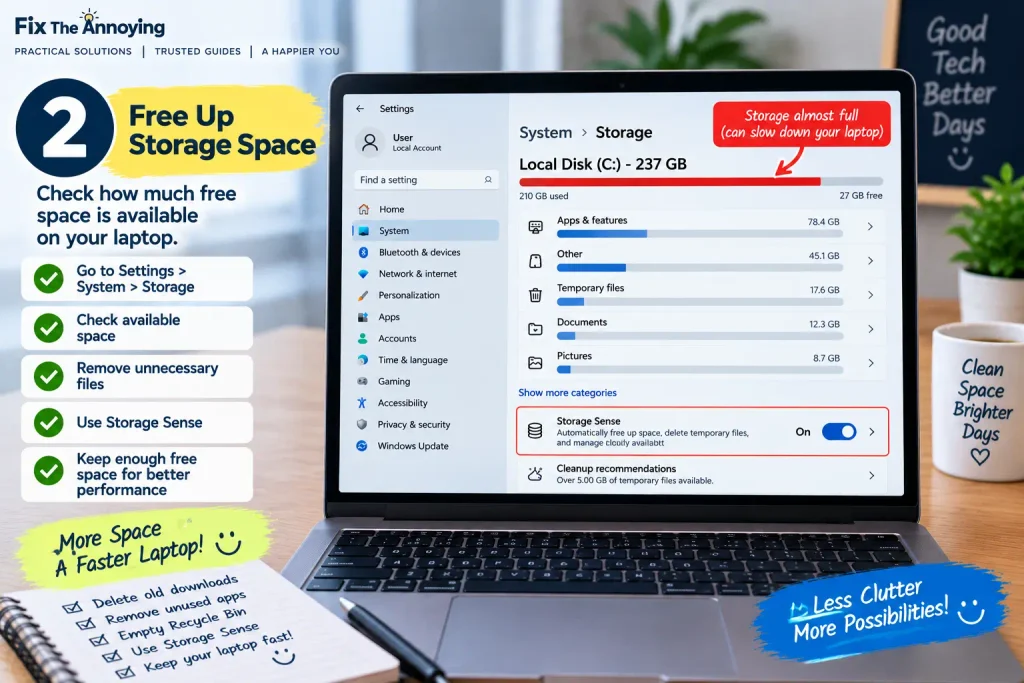
You can remove things such as:
- Temporary files
- Old downloads
- Unused applications
- Large files you no longer need
- Recycle Bin contents
Use Storage Sense
Windows includes Storage Sense, which can automatically remove certain unnecessary temporary files.
Don’t delete personal files simply because they are large. Check what you’re removing first.
4. Check If Your Laptop Is Overheating
Overheating can cause a laptop to slow down, become unstable, or shut down unexpectedly.
Check whether your laptop becomes unusually hot before it freezes.
Common warning signs include:
- Fan running constantly
- Very hot keyboard or bottom panel
- Sudden performance drops
- Loud fan noise
- Freezing during gaming or demanding software
- Laptop shutting down unexpectedly
What you can do:
- Place the laptop on a hard, flat surface.
- Make sure the air vents aren’t blocked.
- Keep dust away from the vents.
- Avoid using the laptop on beds or thick blankets.
- Close demanding programs when they aren’t needed.
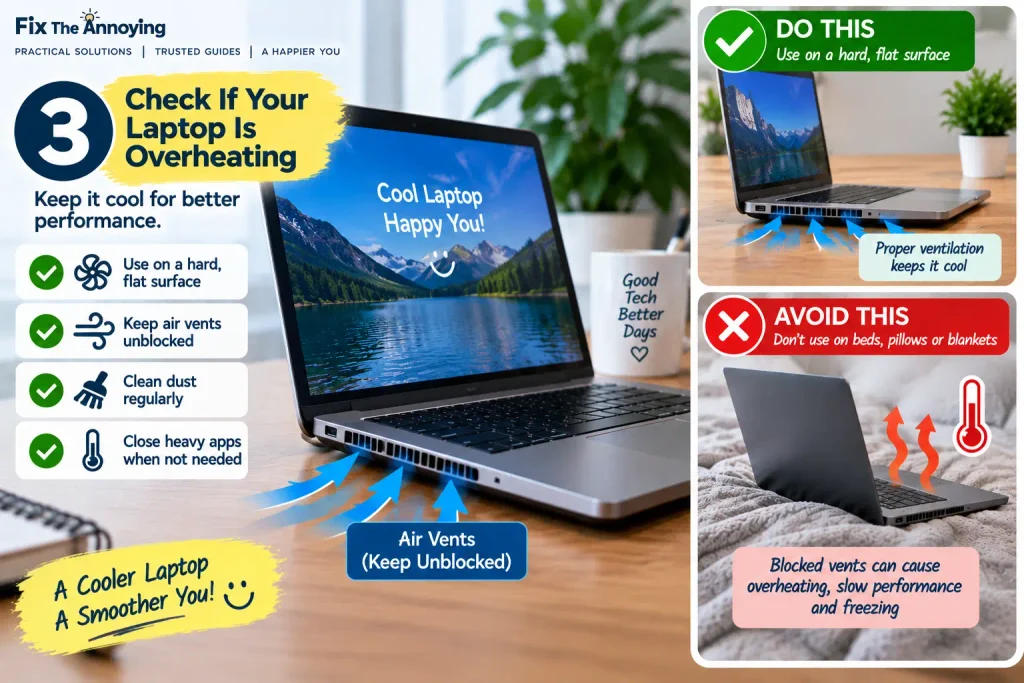
If the laptop repeatedly overheats even after cleaning the vents and improving airflow, professional inspection may be necessary.
5. Install Windows, macOS and Driver Updates
Outdated software can sometimes cause compatibility or stability problems.
Microsoft recommends installing Windows updates and available optional driver updates when troubleshooting performance problems.
On Windows:
Settings → Windows Update → Check for updates
Go to:
Install available updates and restart the laptop if required.
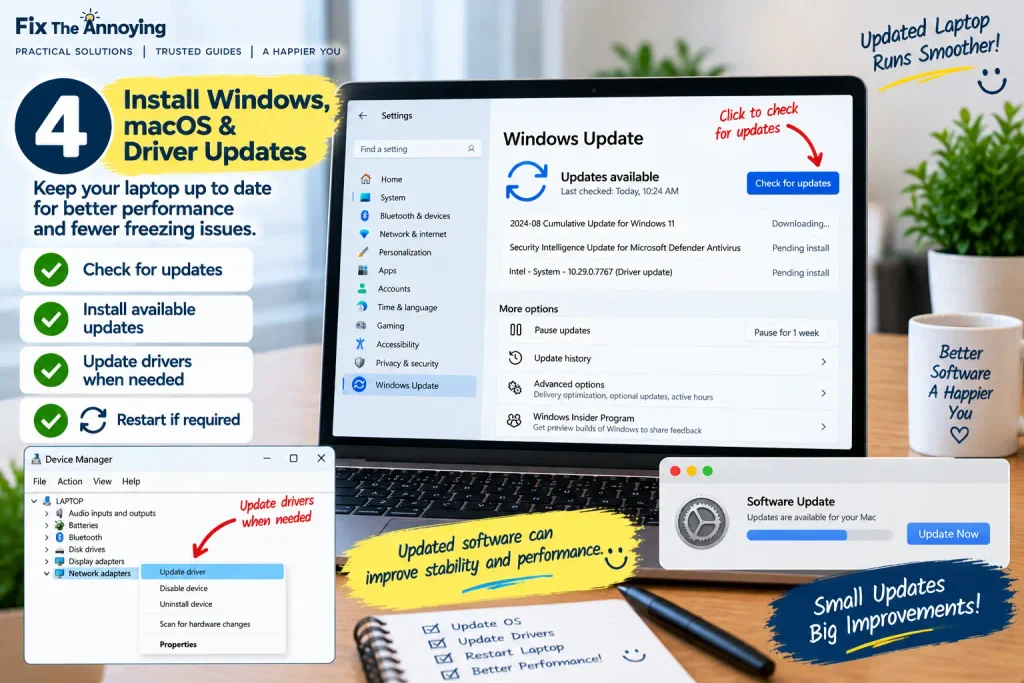
For Windows users: Check the latest updates through Microsoft Windows Update. Microsoft also recommends installing available optional driver updates when appropriate.
Check optional driver updates
On supported Windows versions, you can also check:
Settings → Windows Update → Advanced options → Optional updates
Only install drivers that are appropriate for your hardware.
On Mac:
Go to:
Apple menu → System Settings → General → Software Update
Apple also recommends keeping macOS and affected applications updated when troubleshooting apps that become unresponsive.
6. Check for Malware
Malware can consume CPU, memory and disk resources and may contribute to poor system performance.
Microsoft recommends running a malware scan as part of Windows performance troubleshooting.
Run a Windows Security scan:
Go to:
Settings → Privacy & security → Windows Security → Virus & threat protection
Then select:
Quick scan
If you suspect a more serious infection, follow Microsoft’s recommended scanning options rather than installing several random antivirus programs.
Also check recently installed software
If the freezing started after installing an unfamiliar application, browser extension or utility, consider removing it.
7. Check Your Startup Apps
Some programs automatically start every time you turn on your laptop.
Too many startup applications can consume resources in the background and make the computer feel sluggish.
On Windows:
Open:
Task Manager → Startup apps
Review the applications listed there.
If you don’t need an application to start automatically, you can disable its startup behavior.
Important: Don’t disable Windows security components or drivers unless you know exactly what they do.
Why this helps
Reducing unnecessary startup programs can free resources and reduce the number of applications running immediately after startup.
If your laptop is particularly slow after turning it on, you can also check our guide:
If your laptop is also slow immediately after turning it on, see our guide on Laptop Is Slow After Startup? 9 Easy Ways to Speed It Up for additional troubleshooting steps.
8. Find Out If One App Is Causing the Freeze
Sometimes the laptop itself isn’t the problem.
A particular application may be crashing or becoming unresponsive.
For example, the problem might happen only when you open:
- A specific browser
- Video editing software
- A game
- Photoshop
- A large spreadsheet
- A particular document
If the freezing happens mainly while browsing or using online apps, you can also check our guide on Laptop Won’t Connect to Wi-Fi? 10 Easy Fixes to Try
Try this:
- Close the problematic application.
- Restart the laptop.
- Open the application again.
- Check whether the freezing returns.
- Install the latest version of the application.
- If the problem continues, reinstall the application.
On Mac, Apple recommends quitting or force-quitting an unresponsive app, restarting the Mac, installing updates, and reinstalling the application when appropriate.
A useful clue
If your laptop works normally until you open one particular program, that application deserves closer attention.
9. Check for RAM or Hardware Problems
If you’ve tried the software fixes and your laptop still keeps freezing, the problem could be hardware-related.
Possible causes include:
- Faulty RAM
- Failing SSD or hard drive
- Overheating hardware
- Battery or power problems
- Damaged motherboard components
- A recently installed incompatible device
If the freezing started after installing new hardware or peripherals, disconnect the new device and check whether the problem continues.
Microsoft also recommends removing recently added hardware when troubleshooting repeated Windows errors or crashes.
When hardware is more likely
Hardware becomes more suspicious if your laptop:
- Freezes even when no programs are open
- Freezes immediately after startup
- Shows blue/black screens
- Makes unusual noises
- Frequently restarts
- Fails hardware diagnostics
- Has recently suffered physical damage
In these situations, backing up your important files and getting professional diagnostics is a good idea.
What to Do If Your Laptop Is Completely Frozen
If the screen is completely frozen, try these steps in order.
Step 1: Wait briefly
Sometimes a demanding program may simply be busy.
Give it a minute or two before forcing a shutdown.
Step 2: Try opening Task Manager
On Windows, press:
Ctrl + Shift + Esc
If Task Manager opens, find the application marked as unresponsive and close it.
Step 3: Try Ctrl + Alt + Delete
Press:
Ctrl + Alt + Delete
If the security screen appears, you may be able to open Task Manager or restart Windows.
Step 4: Force shutdown if nothing works
If the laptop doesn’t respond at all, hold the power button until it turns off.
Then wait a few seconds and turn it back on.
Remember: You may lose unsaved work.
You can also use Microsoft’s Windows Help and Learning for additional troubleshooting and hardware support information.
What If My Laptop Keeps Freezing After Restarting?
If restarting temporarily fixes the problem but the laptop freezes again later, look for a pattern.
Ask yourself:
- Does it freeze after opening a particular app?
- Does it happen when many browser tabs are open?
- Does it happen when the laptop gets hot?
- Does it happen during gaming?
- Does it happen shortly after startup?
- Does it happen when the storage drive is nearly full?
- Did the problem start after a Windows/macOS update?
- Did you recently install new software or hardware?
Finding the pattern can help identify the actual cause instead of repeatedly restarting the laptop.
When Should You Take Your Laptop to a Professional?
Consider professional help if:
- The laptop freezes frequently.
- It freezes even after a clean restart.
- It repeatedly shows blue or black screens.
- You suspect failing RAM or storage.
- The laptop becomes extremely hot.
- You hear unusual clicking or grinding noises.
- It has suffered liquid or physical damage.
- Your important files are at risk.
Back up important files before attempting major repairs or recovery procedures.
Microsoft warns that some Windows recovery options can result in data loss, so backing up important files before advanced recovery is important.
How to Prevent Your Laptop From Freezing
A few simple habits can reduce the chance of future freezing problems.
Keep enough free storage
Don’t let your system drive remain almost completely full.
Keep software updated
Install operating-system and application updates regularly.
Limit unnecessary startup apps
Only allow programs you actually need to start automatically.
Keep the laptop cool
Don’t block ventilation and keep the vents reasonably clean.
Avoid suspicious software
Download applications from trusted sources and avoid unknown installers.
Restart occasionally
A restart can clear temporary processes and give the operating system a fresh start.
Keep your important files backed up
A backup won’t prevent freezing, but it can protect you if the problem turns out to be a failing drive or serious system issue.
Laptop Freezing: Quick Fix Checklist
Try these fixes from easiest to more advanced:
☐ Restart the laptop
☐ Close unnecessary applications
☐ Reduce browser tabs
☐ Check CPU, memory and disk usage
☐ Free up storage space
☐ Check for overheating
☐ Install Windows/macOS updates
☐ Update relevant drivers
☐ Scan for malware
☐ Check startup applications
☐ Test problematic applications
☐ Check hardware if freezing continues
Frequently Asked Questions
Why does my laptop keep freezing?
A laptop may keep freezing because of insufficient resources, low storage, overheating, outdated software or drivers, malware, problematic applications, or hardware problems.
Why does my laptop freeze but the mouse still moves?
This often means the entire system hasn’t completely stopped responding. A particular application, Windows process, driver, or high system load may be responsible.
Try opening Task Manager with Ctrl + Shift + Esc and check which application is using unusually high CPU, memory or disk resources.
Can low storage cause a laptop to freeze?
Low storage can contribute to performance problems. If your drive is nearly full, remove unnecessary files and applications and use Windows Storage Sense where appropriate.
Can overheating make a laptop freeze?
Yes. Excessive heat can cause performance problems and instability. Check whether freezing happens more often during gaming, video editing or other demanding tasks.
Should I reset my laptop if it keeps freezing?
Don’t reset it as your first step. Try simpler troubleshooting first, back up your important files, and use recovery or reset options only when necessary.
Microsoft recommends starting with less disruptive troubleshooting options before moving to more significant recovery actions.
What if my Mac keeps freezing?
First check whether one particular application is responsible. Force-quit the application, restart the Mac and install available software updates. Apple also recommends disconnecting recently connected peripherals if you suspect they may be causing problems.
Final Thoughts
A laptop that keeps freezing can be annoying, but you don’t necessarily need a new computer.
Start with the basics: restart the laptop, close unnecessary programs, free up storage and check for overheating.
Then move on to updates, malware scans, startup applications and individual app troubleshooting.
If the problem continues despite these steps—or your laptop shows signs of hardware failure—back up your important files and consider professional diagnostics.
The goal isn’t just to make the freezing stop temporarily. Finding the underlying cause can help prevent the problem from coming back.