
A laptop fan is loud all the time when the cooling system is working harder than usual to control heat inside the computer. You may hear constant whirring, unusually fast fan speeds, or a sudden increase in noise even when you are doing simple tasks.
Sometimes this is completely normal. Your laptop fan may temporarily become louder while installing updates, playing games, editing videos, or running demanding software. However, a fan that remains noisy during light use may indicate blocked airflow, dust buildup, high CPU usage, incorrect power settings, outdated software, or a problem with the cooling fan itself.
The good news is that many causes of a noisy laptop fan can be checked at home without taking the computer apart.
Here are 8 easy fixes to try when your laptop fan is loud all the time.
Why Is My Laptop Fan So Loud?
Laptop fans remove heat generated by components such as the processor and graphics hardware. When the internal temperature rises, the cooling system automatically increases fan speed.
Dell notes that fan speed and noise can change dynamically with computer temperature, while clogged vents and restricted airflow can make a fan work harder.
Common reasons include:
- Dust blocking the air vents
- Too many programs running simultaneously
- High CPU usage
- Using the laptop on a bed or other soft surface
- Demanding games or applications
- Incorrect performance or power settings
- Outdated drivers or BIOS
- A worn, damaged, or failing cooling fan
If your laptop fan is loud all the time, identifying what is making the system run hot is the first step toward fixing the problem
If your laptop fan is loud all the time, start with the easiest fixes below before assuming that the fan needs replacement.
1. Restart Your Laptop
Start with a simple restart.
Applications and background processes can occasionally continue consuming processor resources even after you have finished using them. Higher processor activity generates additional heat, which may cause the cooling fan to run faster.
Save your work and restart the laptop normally.
After restarting, allow the computer to sit idle for several minutes and listen to the fan.
If the noise becomes noticeably quieter, a temporary background process may have been responsible.
If the laptop fan is still loud all the time, continue with the next fix.
Best for: A fan that suddenly became noisy without any obvious hardware problem.
2. Place the Laptop on a Hard, Flat Surface
Where you use your laptop can make a surprisingly large difference.
Many laptops pull cool air through vents located on the bottom or sides. Using the computer on a:
- Bed
- Blanket
- Pillow
- Sofa
- Carpet
- Your lap for long periods
can partially or completely block those openings.
Restricted airflow causes heat to build up, forcing the fan to spin faster.
If your laptop fan is loud all the time, blocked ventilation may be one of the simplest causes to fix.
Move the laptop to a hard, flat surface such as a desk or table and make sure none of its ventilation openings are covered.
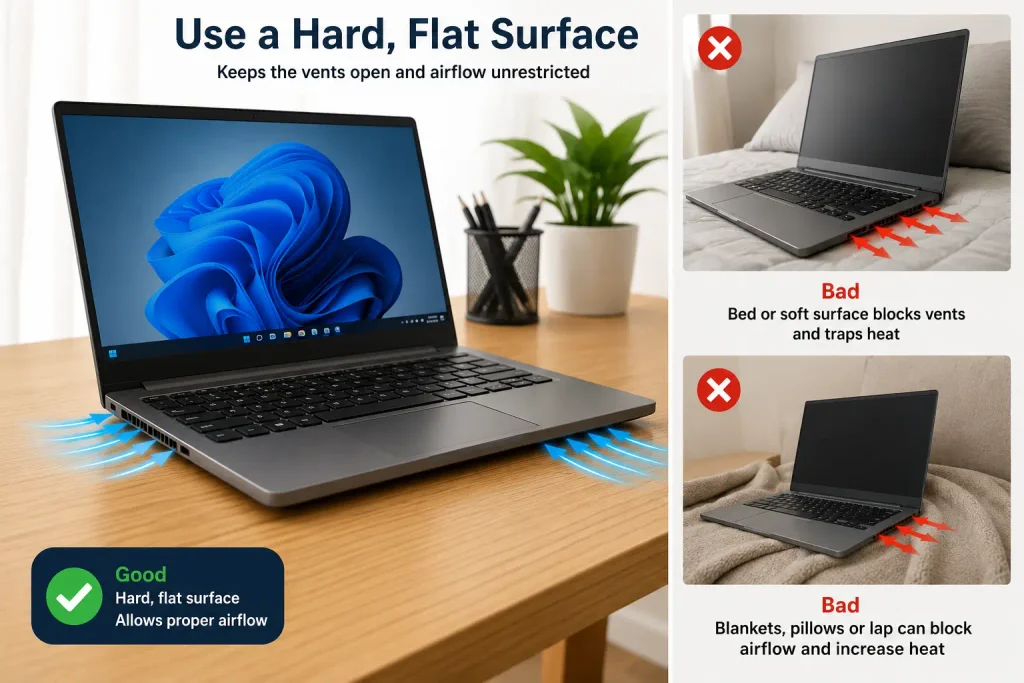
Manufacturer guidance also recommends keeping laptop ventilation unobstructed; soft surfaces can restrict airflow and contribute to overheating.
Use the laptop for several minutes and check whether the fan becomes quieter.
Best for: Laptop fan noise that becomes worse when using the computer on a bed or sofa.
3. Clean Dust From the Laptop Air Vents
Dust is one of the most common reasons a cooling system has to work harder.
Over time, lint and dust can accumulate around the intake and exhaust vents. This reduces airflow and makes it more difficult for heat to escape.
This buildup can be especially important to check when your laptop fan is loud all the time, because restricted airflow makes the cooling system work harder.
First, completely shut down the laptop and disconnect its charger.
Locate the ventilation openings, usually found on the:
- Bottom
- Sides
- Rear edge
Check for visible dust or lint.

Follow the cleaning instructions provided by your laptop manufacturer. Compressed air may be recommended for accessible vents on some models.
For additional guidance, see Dell’s official guide on troubleshooting laptop fan issues and maintaining proper airflow.
Do not push objects deep inside the ventilation openings or dismantle the laptop unless you know how to service it safely.
Dell specifically advises powering off and disconnecting the computer before cleaning vents and warns that blocked airflow makes cooling fans work harder.
After cleaning, restart the computer and monitor the fan noise.
Best for: An older laptop or one that has not had its vents cleaned for a long time.
4. Check CPU Usage in Task Manager
A fan may be working perfectly but running fast because the processor is under heavy load.
In Windows:
Press Ctrl + Shift + Esc → open Task Manager → select Processes.
Look at the CPU column.
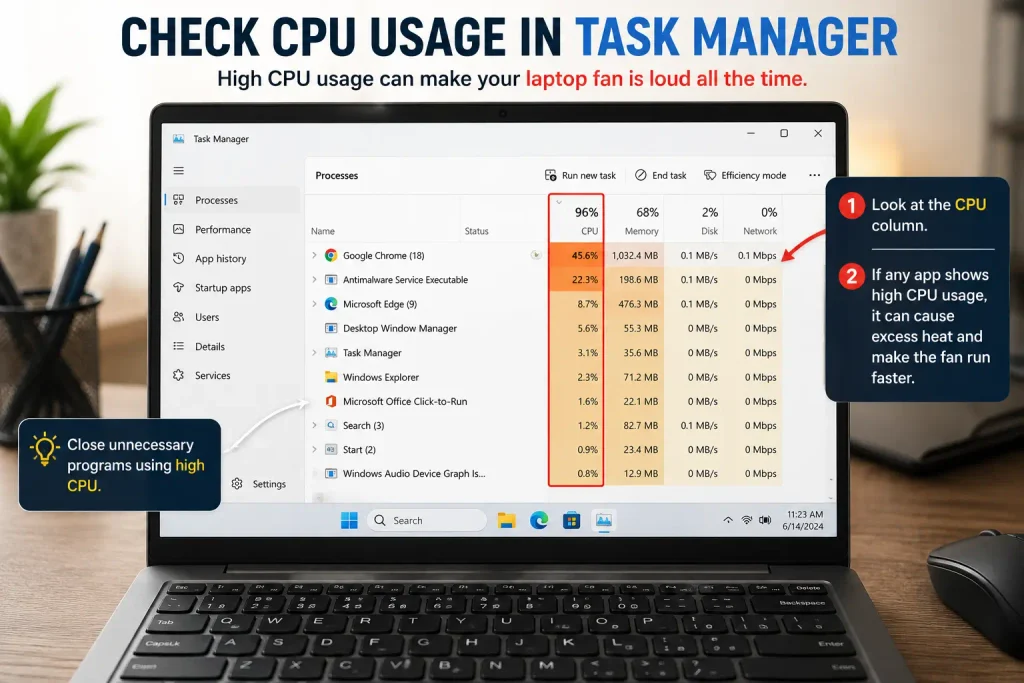
Check whether an application is consistently consuming an unusually large amount of processor resources.
Common causes may include:
- Too many browser tabs
- Video-editing software
- Games
- Cloud synchronization
- Antivirus scans
- Software updates
- Applications running in the background
If you recognize an application you no longer need, close it normally.
Avoid ending unfamiliar Windows or system processes simply because their CPU usage looks high.
Then wait a few minutes.
If CPU usage falls and the fan becomes quieter, excessive processor activity was probably contributing to the problem.
Best for: A laptop fan that is loud all the time even when only a few programs appear to be open.
5. Close Unnecessary Programs and Browser Tabs
You don’t necessarily need to see extremely high CPU usage for multitasking to increase heat.
Having dozens of browser tabs and several applications open simultaneously can increase processor and memory activity.
Close programs you are not currently using.
Also reduce unnecessary browser tabs, especially pages running:
- Streaming video
- Web applications
- Animations
- Online meetings
- Browser-based games
Then give the laptop several minutes to cool down.
If the fan slows down, excessive multitasking was likely contributing to the noise.
You should also review unnecessary applications that launch automatically with Windows. Microsoft explains that startup applications can affect overall system performance and can be managed through Settings → Apps → Startup or Task Manager.
Best for: Users who regularly keep many applications and browser tabs running.
6. Adjust the Laptop Power Mode
Performance settings can also affect heat generation and fan behavior.
A high-performance setting may allow the processor to operate more aggressively, which can generate additional heat.
Changing the power mode may help if your laptop fan is loud all the time during normal browsing or office work.
On Windows 11, you can check:
Settings → System → Power & battery → Power mode
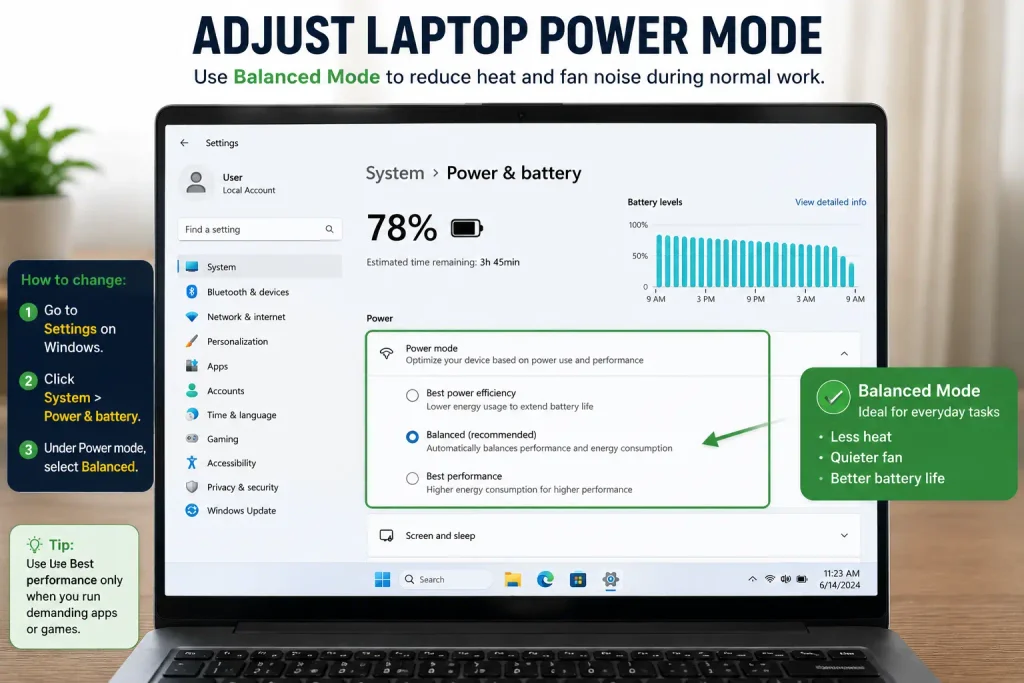
If appropriate for your normal work, try Balanced rather than a maximum-performance setting.
Balanced mode is usually sufficient for everyday activities such as:
- Web browsing
- Writing documents
- Watching videos
- General office work
You can switch back to a higher-performance setting when demanding applications require it.
After changing the setting, use the laptop normally and monitor whether fan noise decreases.
Best for: A laptop that stays noisy during light everyday work.
7. Update Windows, Drivers, and BIOS Carefully
Cooling behavior can sometimes be affected by software, firmware, or thermal-management updates.
Start with Windows Update:
Settings → Windows Update → Check for updates
For device drivers and BIOS updates, use your laptop manufacturer’s official support website or update utility.
Do not download BIOS files or drivers from unknown third-party websites.
BIOS updates require extra care. Follow the manufacturer’s instructions exactly, keep the laptop connected to reliable power, and never interrupt an update once it has started.
Manufacturers may release BIOS or thermal-management updates that affect system cooling behavior; Dell, for example, includes BIOS and thermal-driver checks in its fan and temperature troubleshooting guidance.
Best for: Persistent fan problems when basic airflow and software checks haven’t helped.
8. Check for a Worn or Damaged Cooling Fan
There is an important difference between a fan that is simply spinning fast and one making an abnormal mechanical sound.
Pay attention to noises such as:
- Grinding
- Clicking
- Rattling
- Scraping
- Buzzing
- Repeated irregular sounds
These may indicate a physical fan problem rather than normal cooling activity.
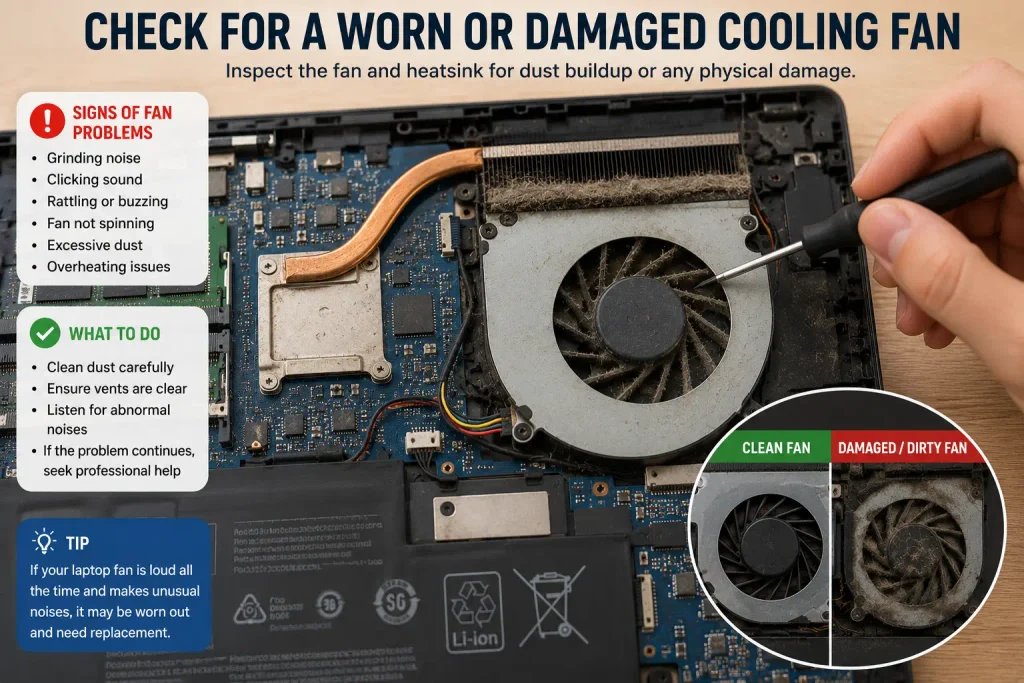
If your laptop fan is loud all the time and produces mechanical noises even when the laptop is cool and mostly idle, the fan may need professional inspection.
Avoid opening the laptop unless you have the appropriate technical experience, particularly if the computer is still covered by a warranty.
Use your manufacturer’s built-in hardware diagnostics if available, or contact an authorized technician.
Best for: Persistent grinding, rattling, clicking, or other abnormal mechanical fan noises.
When Is a Loud Laptop Fan Normal?
A louder fan does not automatically mean something is wrong.
Temporary fan noise can be normal when:
- Playing games
- Editing or exporting video
- Installing Windows updates
- Running antivirus scans
- Using demanding professional software
- Performing large file operations
- Running many applications simultaneously
The fan should generally become quieter after the demanding task finishes and the laptop cools down.
Manufacturer troubleshooting guidance similarly notes that high CPU activity can temporarily raise temperatures and fan speed, which may stabilize after the workload ends.
The bigger concern is when the fan remains unusually loud during light use or while the computer is nearly idle.
Laptop Fan Loud and Laptop Overheating at the Same Time
If loud fan noise is accompanied by excessive heat, slow performance, unexpected shutdowns, or freezing, investigate the temperature problem as well.
If your laptop keeps overheating along with constant fan noise, follow our complete troubleshooting guide to identify and fix the most common causes.
A cooling fan often speeds up specifically because the system is trying to remove excess heat.
How to Prevent Your Laptop Fan From Getting Too Loud
Regular maintenance can help prevent the problem from returning. These simple habits can also reduce the chances that your laptop fan is loud all the time during everyday use.
Keep the ventilation openings clear, use the computer on a firm surface, clean accessible vents periodically according to the manufacturer’s instructions, avoid unnecessary background programs, and keep your operating system and manufacturer-recommended drivers updated.
Also pay attention to changes in the sound.
A fan that gradually becomes louder over several months may indicate increasing dust buildup, while a sudden grinding or rattling noise may indicate a mechanical issue.
Frequently Asked Questions
Why is my laptop fan so loud even when I’m not doing anything?
Background programs, updates, antivirus scans, blocked airflow, dust buildup, or high CPU usage can keep the cooling system active even when the laptop appears idle. Check Task Manager to identify unexpected processor activity.
Is it bad if my laptop fan is always running?
Not necessarily. Some laptops run their fans frequently by design. However, if the laptop fan is loud all the time, especially during light use, check airflow, dust, CPU usage, power settings, and temperatures.
Can dust make a laptop fan loud?
Yes. Dust and lint can restrict airflow around vents and cooling components, causing the fan to work harder to control temperature.
Can too many browser tabs make my laptop fan louder?
Yes. Active browser tabs can consume processor and memory resources. Increased workload can generate additional heat and cause the cooling fan to increase its speed.
Should I replace a noisy laptop fan?
Not immediately. First rule out blocked vents, high CPU usage, poor ventilation, power settings, and software issues. A fan producing persistent grinding, clicking, scraping, or rattling sounds is more likely to need hardware inspection.
Can a cooling pad reduce laptop fan noise?
A cooling pad can improve airflow in some situations and may help the laptop manage heat, although results vary by laptop design and workload. Dell’s support guidance notes that cooling pads can supplement airflow.
Final Thoughts
If your laptop fan is loud all the time, don’t immediately assume the fan is broken.
Start by restarting the computer, placing it on a hard surface, cleaning accessible air vents, checking CPU usage, closing unnecessary programs, and reviewing the power mode. Then check Windows, manufacturer drivers, and BIOS updates if the problem continues.
A fan that becomes louder only during demanding tasks is often responding normally to increased heat. However, persistent grinding, clicking, rattling, overheating, unexpected shutdowns, or excessive fan speed during light use deserves closer attention.
Taking care of airflow and reducing unnecessary system load can often make a noisy laptop quieter while also helping the cooling system operate more efficiently.