A laptop is designed to give you the freedom to work, study, browse, or watch videos without staying connected to a charger all the time. But when you notice your laptop battery draining fast, that convenience quickly disappears.
Maybe your laptop used to last several hours but now needs charging much sooner. Or perhaps the battery percentage drops quickly even when you are only browsing the web or working on documents.
If you are dealing with a laptop battery draining fast, the cause may be a simple setting or an application using too much power.
The good news is that fast battery drain does not always mean the battery needs to be replaced. High screen brightness, background programs, power settings, startup apps, and other everyday factors can all increase power consumption.
In this guide, we’ll go through 10 easy fixes to improve laptop battery life and help you determine whether the problem is caused by settings, software, or an aging battery.
Why Is My Laptop Battery Draining So Fast?
If your laptop battery is draining fast, there can be several possible causes.
Some of the most common include:
- High screen brightness
- Too many programs running simultaneously
- Battery-hungry background applications
- Performance-focused power settings
- Unnecessary startup programs
- Bluetooth and other wireless features running when not needed
- Outdated software or drivers
- Excessive laptop heat
- Battery wear caused by age and repeated charging cycles
A laptop battery draining fast does not necessarily mean the battery has failed, so it is worth checking these common causes first.
Battery life also varies depending on what you are doing. Gaming, video editing, video calls, and other demanding tasks generally consume considerably more power than reading documents or basic web browsing.
Before assuming that your battery is damaged, try the following fixes.
1. Lower the Screen Brightness
Your laptop display can consume a significant amount of battery power, particularly when brightness is set close to maximum.
If you regularly use your laptop indoors, you may not need the display at full brightness.
Try gradually reducing the brightness until the screen remains comfortable to read.
On Windows, you can usually adjust it from:
Settings → System → Display → Brightness
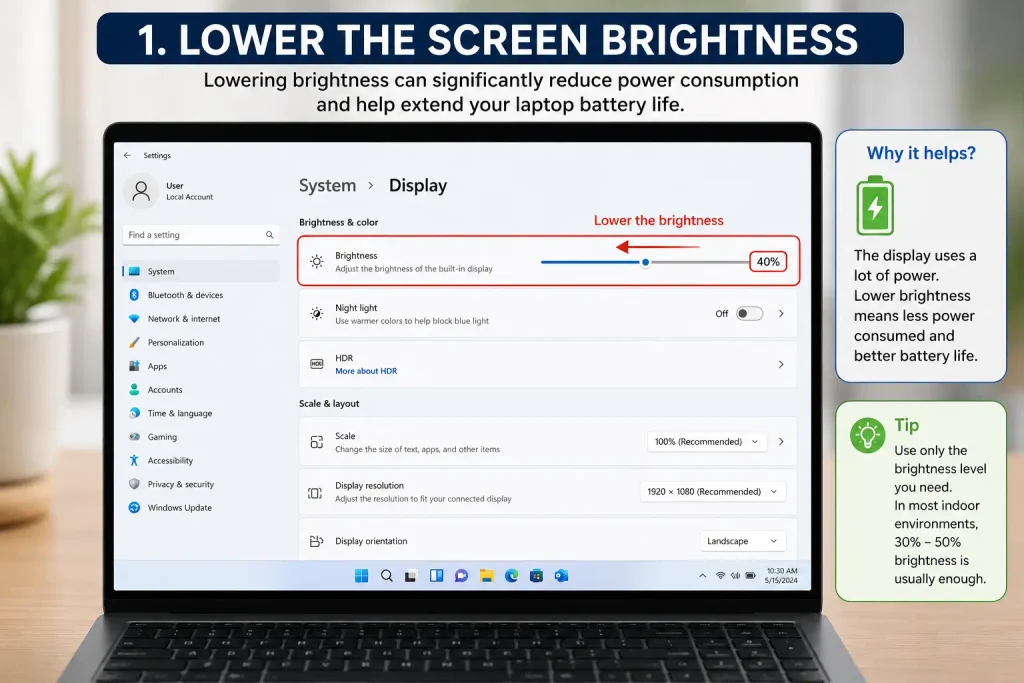
You can also use the brightness controls available in Quick Settings or the function keys on many laptops.
If your laptop battery draining fast is becoming a daily problem, reducing screen brightness is one of the simplest changes to try first.
Avoid making the display unnecessarily dark. The goal is to find a comfortable level that reduces power consumption without making the screen difficult to use.
Best for: Laptops regularly used at high screen brightness.
2. Change the Windows Power Mode
Windows provides different power modes that balance performance and energy consumption.
A performance-focused setting may allow your laptop to use more processing power, which can increase battery consumption.
Go to:
Settings → System → Power & battery → Power mode
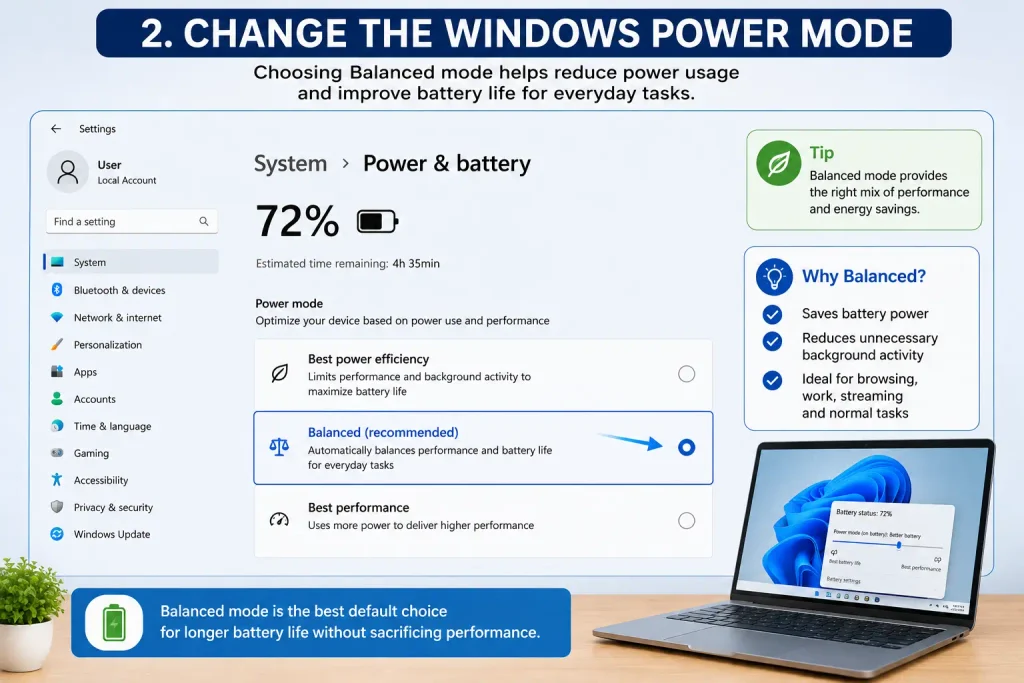
If your laptop is currently configured for maximum performance, try selecting Balanced or another energy-efficient option available on your device.
For normal activities such as browsing, writing documents, checking email, or streaming videos, you may not need maximum performance all the time.
Changing the power mode can be especially helpful when you notice your laptop battery draining fast during relatively light everyday tasks.
If you later run demanding software, you can adjust the power settings again if additional performance is required.
Best for: Laptops using aggressive performance settings while running on battery.
3. Close Battery-Hungry Apps
Some programs use much more processor power than others. When an application continuously uses the CPU, graphics processor, network, or other system resources, battery consumption can increase.
Press:
Ctrl + Shift + Esc
to open Task Manager.
Select Processes and look at the CPU and other resource columns.
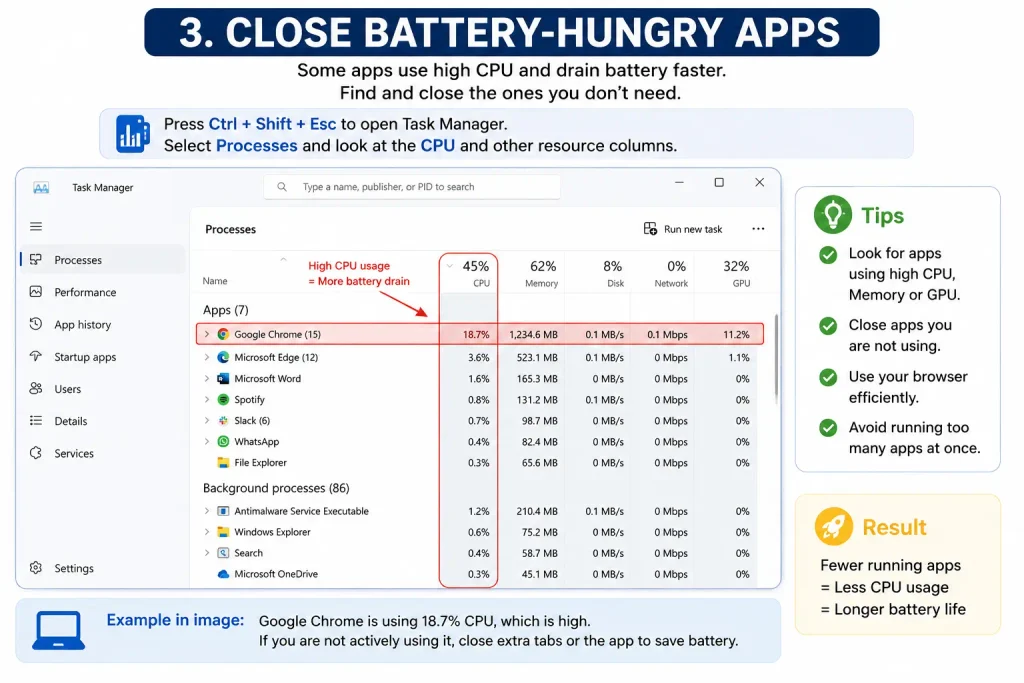
Pay attention to applications that consistently consume unusually high system resources even when you are not actively using them.
Close programs you no longer need using their normal exit controls.
For example, you may have several applications running in the background even though you finished using them hours ago.
However, avoid randomly ending Windows processes that you do not recognize. Some are required for the operating system to function correctly.
Reducing unnecessary workload gives the processor less work to do and may help extend battery runtime.
Best for: A laptop that becomes warm or loses battery quickly while several applications are open.
4. Disable Unnecessary Startup Apps
Many applications are configured to launch automatically whenever you sign in to Windows.
Individually, they may not consume much power. But several unnecessary startup applications running together can increase background activity.
Open:
Settings → Apps → Startup
Review the applications that are allowed to start automatically.
Disable startup for programs you recognize and do not need immediately after signing in.
You can also review startup applications through Task Manager → Startup apps on supported Windows versions.
Be selective rather than disabling everything.
Security software, hardware utilities, cloud synchronization tools, and other applications may have legitimate reasons to run automatically.
Reducing unnecessary startup activity can help when your laptop battery is draining fast soon after you start the computer.
Best for: Laptops with many applications launching automatically.
5. Turn Off Bluetooth and Unused Connections
Wireless features require power.
Bluetooth is useful when you are actively using wireless headphones, a mouse, keyboard, or another accessory. But if you do not need it, turning it off can reduce unnecessary wireless activity.
Open Quick Settings or go to:
Settings → Bluetooth & devices
and turn Bluetooth off when it is not required.
You can also disconnect accessories and external devices that you are not currently using.
The battery savings from switching off one wireless feature may be modest, but several small improvements can add up when you are trying to maximize runtime away from a charger.
Do not disable Wi-Fi if you need an internet connection simply for the sake of saving battery.
Best for: Users trying to maximize battery runtime while traveling or working away from an outlet.
6. Reduce Background App Activity
Not every application stops working when you minimize its window.
Some programs continue syncing files, checking for updates, sending notifications, downloading information, or performing other background tasks.
That activity can consume processor, network, and battery resources.
Open Windows battery settings and review the available battery usage information on your laptop. Depending on your Windows version and device, you may be able to see which applications have been consuming the most power.
Pay particular attention to programs you rarely use but that show substantial background activity.
Where Windows and the application allow it, reduce unnecessary background activity or adjust the application’s own synchronization and notification settings.
If you notice your laptop battery draining fast even while doing very little, background applications are worth investigating.
Best for: Battery loss that seems excessive during light or idle use.
7. Adjust Screen and Sleep Settings
Leaving the screen on when you are away from the laptop wastes battery power.
Windows allows you to control how quickly the display turns off and when the computer enters sleep while running on battery.
Go to:
Settings → System → Power & battery → Screen, sleep & hibernate timeouts
The exact wording can vary depending on your Windows version.
Choose reasonable battery-powered timeout settings.
For example, you might configure the display to turn off after a few minutes of inactivity rather than leaving it on for a long period.
You can also choose an appropriate sleep timeout.
Avoid settings that interrupt your normal workflow. The objective is simply to prevent the laptop from consuming unnecessary power when nobody is using it.
This is particularly useful if you frequently walk away from your desk and forget to lock or sleep the computer.
Best for: Laptops that often remain awake and unattended.
8. Update Windows and Device Drivers
Software and driver problems can sometimes contribute to excessive power consumption.
Windows updates may contain bug fixes, security improvements, and compatibility changes. Hardware manufacturers may also release driver or firmware updates that affect power management.
Check Windows Update through:
Settings → Windows Update
Install appropriate updates offered for your system and restart when required.
For manufacturer-specific drivers or BIOS/firmware updates, use your laptop manufacturer’s official support resources.
Be especially careful with BIOS or firmware updates. Follow the manufacturer’s instructions exactly and make sure the laptop has adequate power during the update.
If the laptop battery is draining fast because of a software or driver issue, keeping the system properly updated may help.
Do not install random “battery optimizer” or driver-update utilities from unfamiliar websites.
Best for: Battery problems that started after software changes or on systems that have not been updated for a long time.
9. Check Your Laptop Battery Health
If the previous fixes do not make much difference, check the physical health of the battery.
Rechargeable batteries gradually lose their ability to hold their original amount of charge as they age.
Windows includes a useful battery-report command.
Open Command Prompt or Windows Terminal and run:
powercfg /batteryreport
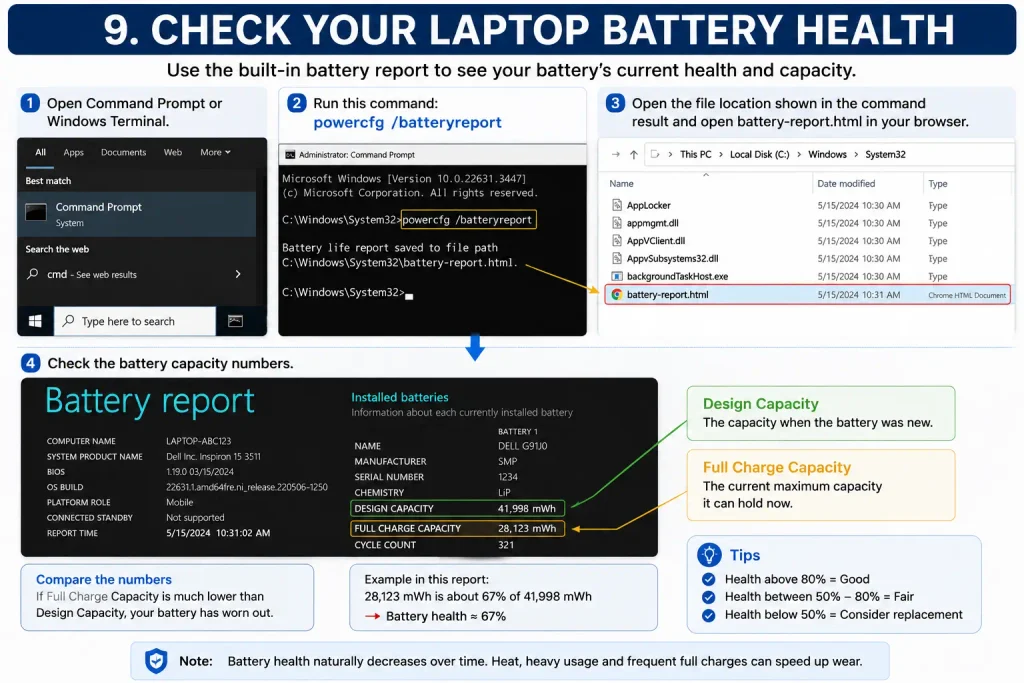
Windows will generate a battery report and tell you where the HTML file has been saved.
Open the report and look for information such as:
- Design Capacity
- Full Charge Capacity
- Battery usage history
- Capacity history
- Cycle information, when available
Design Capacity represents approximately how much charge the battery was designed to hold when new, while Full Charge Capacity shows how much it can currently hold.
A substantially reduced full-charge capacity can indicate battery wear.
Battery reports should be considered alongside actual runtime and the manufacturer’s diagnostics rather than relying on one number alone.
Checking battery health is particularly useful when a laptop battery draining fast problem continues even after changing Windows power settings.
Best for: Older laptops or batteries that have gradually lost runtime.
10. Replace an Aging Laptop Battery
If your battery has significantly deteriorated, software adjustments cannot restore its original physical capacity.
An older battery may charge normally to 100% according to Windows but still provide much less runtime than it did when new.
Possible signs of an aging or failing battery include:
- Runtime has become dramatically shorter
- Battery percentage falls unusually quickly
- Laptop shuts down unexpectedly while on battery
- Battery health diagnostics report substantial degradation
- The computer works normally when connected to power but has poor battery runtime
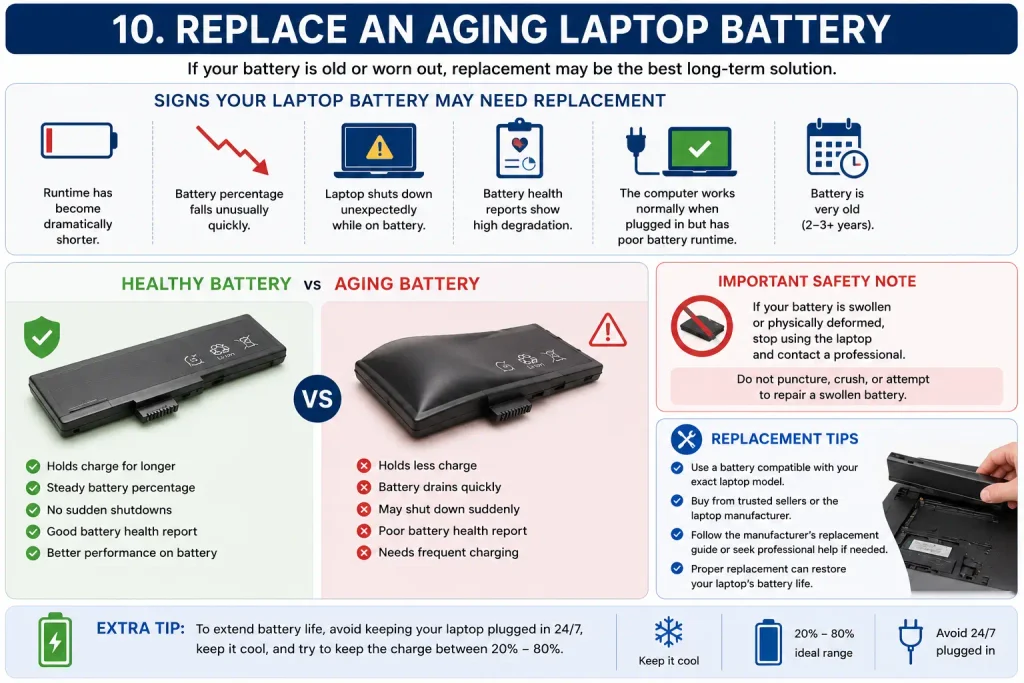
If testing indicates that the battery is worn out, replacement may be the most effective long-term solution.
Use a battery that is compatible with your exact laptop model and follow the laptop manufacturer’s replacement guidance.
Some modern laptops have internal batteries that are not intended for easy user replacement. In that situation, professional service may be appropriate.
Important: If you notice a swollen or physically deformed battery, stop using the affected device and follow the manufacturer’s safety/service guidance. Do not puncture, crush, or attempt to repair a swollen battery yourself.
Best for: Older or clearly degraded batteries that no longer provide practical runtime.
Laptop Battery Draining Fast and Laptop Getting Hot?
Fast battery drain and excessive heat can sometimes occur together.
The processor and other components consume electrical power while they operate, and demanding workloads generate heat. If a program continuously uses significant system resources, you may notice both increased fan activity and shorter battery runtime.
Blocked ventilation can make thermal conditions worse as well.
If your laptop is becoming unusually hot, check that its ventilation openings are clear and use it on a hard, stable surface that allows airflow.
If the cooling fan is constantly running loudly, our guide on fixing a laptop fan that is loud all the time can help you troubleshoot airflow, CPU usage, dust, and cooling issues.
If overheating is the bigger problem, you should also investigate why your laptop keeps overheating rather than treating battery drain as an isolated issue.
How to Make Your Laptop Battery Last Longer
Once you have fixed the immediate problem, a few everyday habits can help you get better battery runtime.
Keep screen brightness at a comfortable but reasonable level, close applications when you no longer need them, and avoid running maximum-performance modes unnecessarily.
Keep Windows and appropriate manufacturer drivers updated, and make sure the laptop’s cooling vents remain unobstructed.
When you know you will be away from a charger for a long time, reduce unnecessary background activity and wireless features that you do not need.
Windows battery-saving features can also help reduce power consumption when remaining charge is limited.
For more ways to reduce power consumption, see Microsoft’s official guidance on saving battery power in Windows.
These changes may seem small individually, but together they can make a noticeable difference when you have a laptop battery draining fast.st.
When Should You Get the Laptop Checked?
Consider professional diagnosis if battery life remains extremely poor after you have checked the settings, background programs, updates, and battery health.
Professional inspection may also be appropriate if:
- The laptop unexpectedly powers off
- The battery will not charge correctly
- Windows cannot reliably detect the battery
- The laptop becomes excessively hot
- There are unusual smells or physical battery changes
- The battery or laptop casing appears swollen or distorted
Hardware problems involving the battery, charging circuitry, or power adapter may require more than software troubleshooting.
Frequently Asked Questions
Why is my laptop battery draining so fast all of a sudden?
A sudden change can be caused by a new background application, high CPU activity, increased screen brightness, a software or driver problem, or changes to power settings. Check Task Manager and Windows battery usage information to see whether an application is consuming unusually high resources.
Why is my laptop battery draining fast even when I’m not using it?
The laptop may still be running background processes, syncing data, downloading updates, or remaining awake instead of entering sleep. Review background activity and your screen and sleep settings.
Does lowering brightness really improve laptop battery life?
Yes. The display consumes power, so reducing unnecessarily high brightness can help extend battery runtime. The actual improvement depends on the laptop, display, brightness level, and how you use the device.
Does Battery Saver improve battery life?
Battery-saving features can reduce some background activity and power consumption, which may extend runtime when you are using the laptop away from a charger. The effect varies depending on your device and workload.
How do I know if my laptop battery needs replacing?
Check battery health using Windows battery reports and any diagnostics provided by your laptop manufacturer. A major reduction in full-charge capacity combined with very short real-world runtime can indicate significant battery wear.
Can overheating cause a laptop battery to drain faster?
Heavy system activity can cause both increased heat and higher power consumption. Excessive heat can also be harmful to battery longevity over time, so persistent overheating should be investigated rather than ignored.
Is it normal for laptop battery life to decrease over time?
Yes. Rechargeable batteries are consumable components and gradually lose capacity as they age and accumulate charge cycles. How quickly this happens depends on battery chemistry, temperature, charging patterns, usage, and other factors.
Final Thoughts
If you have a laptop battery draining fast, don’t immediately assume that you need a new battery.
Start with simple fixes such as lowering screen brightness, changing the power mode, closing unnecessary applications, reducing background activity, and adjusting sleep settings.
Then check for updates and review the battery’s health. If the battery has substantially deteriorated after years of use, replacement may eventually be necessary.
By combining sensible Windows settings with good usage and cooling habits, you can reduce unnecessary power consumption and get more useful time from each charge.