You connect your charger, see that the laptop is plugged in, but the battery percentage refuses to increase. Sometimes the charging icon appears without any progress, while in other cases the laptop may work only when the charger remains connected.
If your laptop plugged in but not charging problem has suddenly appeared, don’t assume immediately that the battery needs to be replaced. The issue can be caused by something as simple as a loose connection, a damaged charging cable, an incompatible adapter, a temporary Windows problem, or a battery protection setting.
In this guide, we’ll walk through 8 practical fixes you can try before considering battery replacement or professional repair.
Safety note: Stop using a charger, cable, battery, or laptop immediately if you notice swelling, burning smells, smoke, sparking, exposed wires, unusual heat, or other physical damage. Do not open or repair a power adapter or swollen battery yourself.
Why Is My Laptop Plugged In but Not Charging?
A laptop plugged in but not charging can have several possible causes.
Common reasons include:
- A loose charger connection
- A damaged charging cable or adapter
- Dirt or physical damage in the charging port
- An incompatible or underpowered charger
- Battery protection or charge-limit settings
- A temporary Windows power-management problem
- Outdated firmware or manufacturer software
- An aging or failing laptop battery
- A hardware problem with the charging port or motherboard
The symptoms can help narrow down the cause. For example, if the laptop charges only when the cable is held at a certain angle, a physical connection problem is more likely. If charging consistently stops at a specific percentage, a battery-protection setting may be involved.
Let’s start with the easiest checks.
1. Check the Charger and Power Connections
Start by checking the entire charging connection from the wall outlet to the laptop.
Make sure the charger is firmly connected to:
- The wall outlet
- Any detachable power cable or adapter section
- The laptop’s charging port
If you are using a power strip, dock, or extension board, temporarily connect the charger directly to a known-working wall outlet.
Then unplug the charger from the laptop, wait a few seconds, and reconnect it firmly.
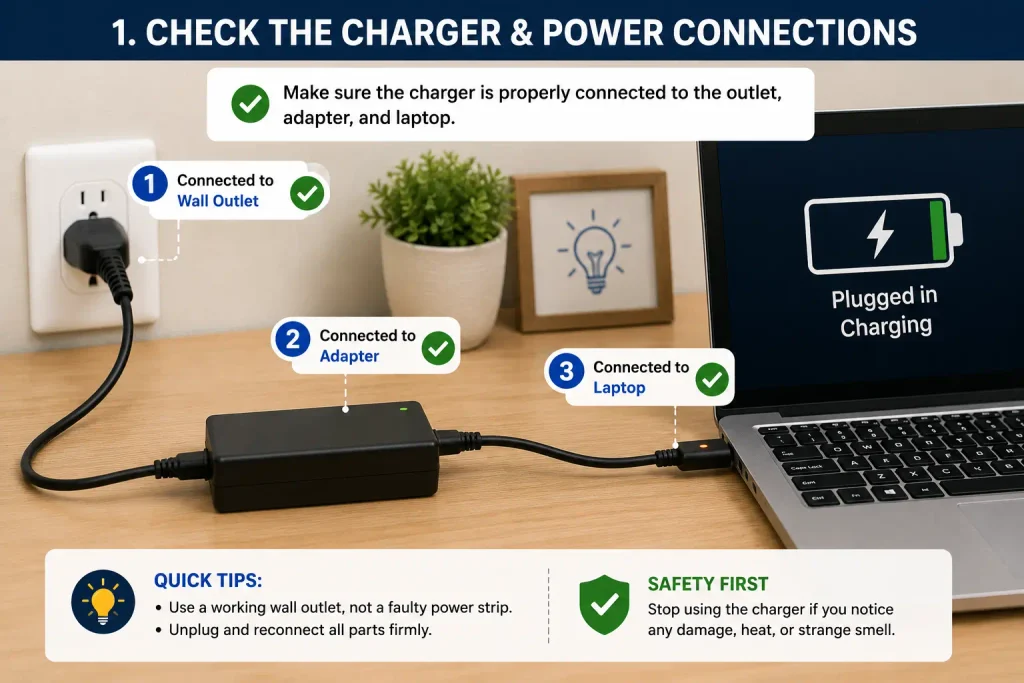
If your laptop plugged in but not charging issue is caused by a loose connection, this simple check may solve it immediately.
Also inspect the cable for obvious damage such as:
- Fraying
- Cuts
- Bent connectors
- Exposed wiring
- Loose sections near either end
Do not continue using a visibly damaged charger.
Best for: Charging problems that appeared suddenly or occur intermittently.
2. Inspect the Laptop Charging Port
Next, look carefully at the laptop’s charging port.
Dust, lint, debris, or physical damage can prevent the charging connector from making a reliable connection.
Shut down the laptop and disconnect the charger before inspecting the port.
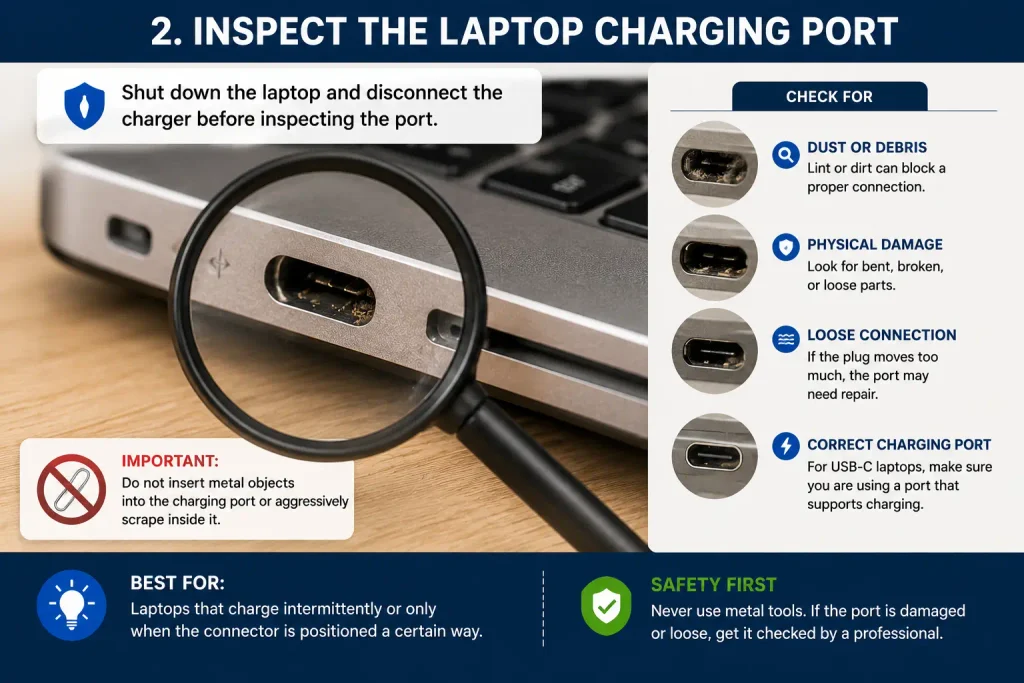
Use good lighting and check for:
- Visible debris
- Bent or damaged parts
- A connector that feels unusually loose
- Signs of overheating or discoloration
Do not insert metal objects into the charging port or aggressively scrape inside it.
If the charging plug moves excessively or charging starts and stops when the connector is moved, the port itself may need professional inspection.
For USB-C laptops, also make sure you’re using a USB-C port that actually supports charging. Not every USB-C port on every laptop necessarily accepts power input.
Best for: Laptops that charge intermittently or only when the connector is positioned a certain way.
3. Make Sure You’re Using the Correct Charger
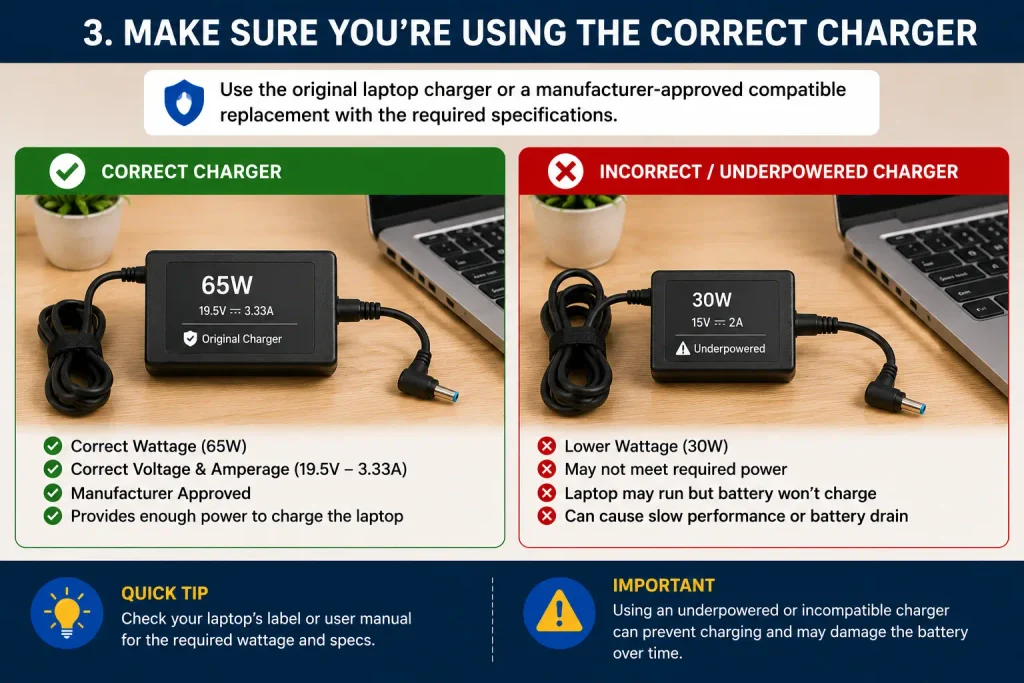
Not every charger that physically connects to a laptop can provide the power the laptop requires.
This is particularly important with USB-C charging.
A charger may have the correct connector but provide insufficient wattage or may not support the charging standard required by your laptop.
Check the specifications supplied by the laptop manufacturer and compare them with your charger.
Whenever possible, use:
- The original laptop charger, or
- A manufacturer-approved compatible replacement with the required specifications
An underpowered charger may sometimes keep a laptop running while failing to charge the battery effectively, especially when the computer is under heavy load.
For additional troubleshooting guidance, see Dell’s official guide for a laptop battery that is plugged in but not charging.
If your laptop plugged in but not charging problem began after changing chargers, adapters, cables, docks, or USB-C accessories, compatibility should be one of the first things you investigate.
Best for: Problems that began after replacing the original charger.
4. Restart the Laptop and Perform a Basic Power Reset
A temporary power-management problem can sometimes interfere with charging detection.
First, save your work and perform a normal Windows restart.
After restarting, reconnect the charger and check whether the battery begins charging.
If that doesn’t help, some laptops support a basic power reset.
A general approach for many systems is:
- Shut down the laptop.
- Disconnect the charger.
- Disconnect unnecessary external devices.
- Follow your laptop manufacturer’s instructions for performing a power reset.
- Reconnect the charger and start the computer.
The exact procedure varies by manufacturer and laptop model. Some systems have internal batteries or specific reset procedures, so avoid randomly removing components.
A restart or manufacturer-approved power reset may help when the laptop plugged in but not charging message is caused by a temporary hardware-detection or power-management issue.
Best for: Charging stopped unexpectedly even though the charger and battery previously worked normally.
5. Check Battery Charge Limit or Battery Protection Settings
Sometimes a laptop that stops charging at a certain percentage is actually working as designed.
Many manufacturers provide battery-health features that intentionally limit maximum charge to help reduce long-term battery wear.
Depending on your laptop, you may see settings with names such as:
- Battery Conservation
- Battery Health
- Smart Charging
- Charge Limit
- Battery Care
- Adaptive Charging
These settings may be available in the manufacturer’s laptop utility, BIOS/UEFI, or Windows-related battery features.
For example, a battery protection mode may intentionally stop charging around a predefined level rather than continuously keeping the battery at 100%.
If your laptop repeatedly stops at roughly the same percentage, check the manufacturer’s battery settings before assuming the battery or charger has failed.
Do not disable a battery-health feature unless you actually need a full charge and understand what the setting does.
Best for: A laptop that charges normally but consistently stops at a particular percentage.
6. Reinstall the Battery Drivers in Windows
Windows uses system drivers to communicate with the laptop’s battery and charging hardware.
If battery information is being detected incorrectly, reinstalling the relevant battery device entries can sometimes help Windows detect them again.
Before making changes, save your work.
Right-click Start and open:
Device Manager → Batteries
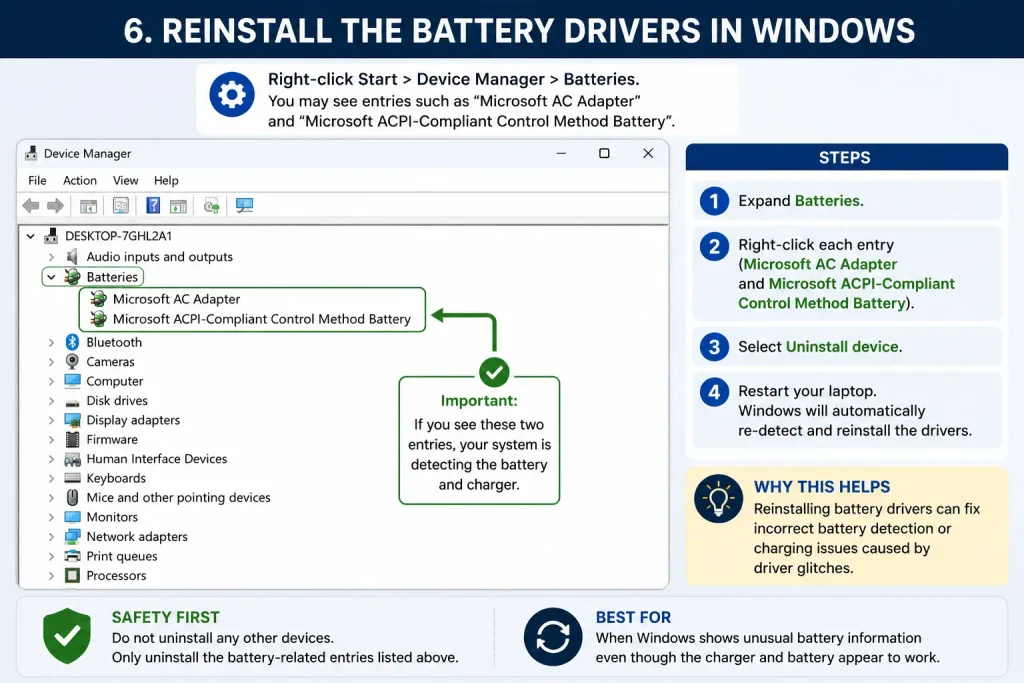
You may see entries such as:
Microsoft AC Adapter
and
Microsoft ACPI-Compliant Control Method Battery
If appropriate for your Windows system, you can uninstall the relevant battery device entry and then restart the computer. Windows normally detects supported hardware again during startup.
Do not randomly uninstall unrelated devices from Device Manager.
After restarting, reconnect the charger and check the battery status.
If your laptop plugged in but not charging problem is related to incorrect battery detection in Windows, refreshing the battery device may help.
Best for: Windows shows unusual battery information even though the physical charger appears to work.
7. Update Windows, BIOS, and Manufacturer Drivers Carefully
Charging behavior is controlled by both hardware and software.
Laptop manufacturers sometimes release BIOS, firmware, chipset, or power-management updates that address hardware compatibility and battery-related behavior.
Start with:
Settings → Windows Update
Install appropriate Windows updates and restart the laptop when required.
Then visit your laptop manufacturer’s official support page and check whether relevant updates are available for your exact laptop model.
Be particularly careful with BIOS or firmware updates.
Use only the manufacturer’s official files and instructions. Do not interrupt a firmware update once it has started, and follow any power requirements specified by the manufacturer.
Avoid third-party websites that claim to provide automatic BIOS or driver updates.
If the laptop plugged in but not charging problem began after a software or firmware issue, installing the appropriate official update may help.
Best for: Charging problems accompanied by outdated firmware, drivers, or unusual power-management behavior.
8. Check Battery Health and Consider Hardware Failure
If none of the previous fixes works, it is time to investigate the battery itself.
Rechargeable laptop batteries gradually lose capacity as they age.
Windows can generate a battery report that provides useful information about battery capacity.
Open Command Prompt or Windows Terminal and run:
powercfg /batteryreport
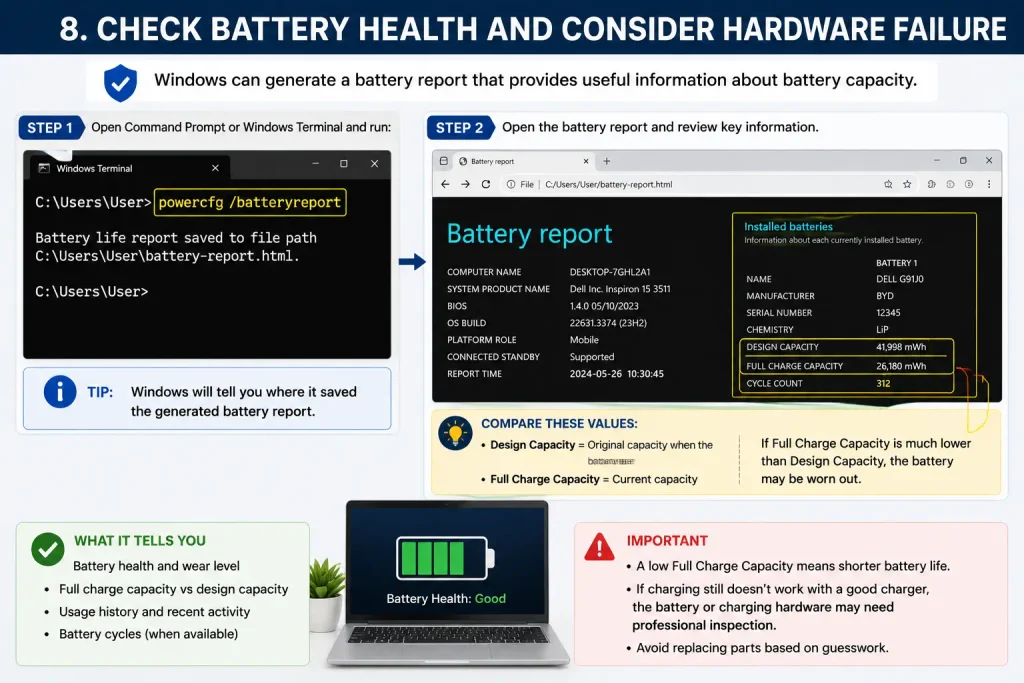
Windows will tell you where it saved the generated battery report.
Open the report and compare information such as:
- Design Capacity
- Full Charge Capacity
- Battery capacity history
- Usage history
- Cycle information, when available
If Full Charge Capacity has fallen substantially compared with Design Capacity and real-world runtime is also poor, the battery may be significantly worn.
If your laptop plugged in but not charging continues even with a known-compatible charger and the battery is not being charged correctly, professional diagnosis may be needed.
Possible hardware causes include the battery, charging port, power adapter, internal charging circuitry, or other components.
Avoid replacing components based solely on guesswork.
Best for: Older laptops or charging problems that remain after software and charger checks.
What If the Laptop Charges Only When Turned Off?
This symptom deserves extra attention.
If the battery charges while the laptop is turned off but struggles to charge while the computer is running, possible causes can include an underpowered or incompatible charger, unusually high power consumption, battery degradation, or another charging-system issue.
Start by confirming that the charger meets the manufacturer’s required specifications.
Then reduce demanding workloads and check whether charging behavior changes.
If the problem continues with the correct charger, manufacturer diagnostics or professional inspection may be appropriate.
What If the Laptop Says “Plugged In” but Stays at 0%?
A battery that remains at 0% despite being connected to power can indicate several different problems.
Try restarting the laptop, verifying the charger, checking battery detection in Windows, and running manufacturer diagnostics if available.
If the computer shuts down immediately when the charger is disconnected, the battery may not be supplying usable power.
However, do not assume automatically that the battery is defective. The charging system, connector, or power adapter can produce similar symptoms.
What If the Laptop Stops Charging at 80%?
A laptop stopping around 80% does not necessarily indicate a fault.
Battery-health or smart-charging features on some laptops intentionally limit the maximum charge when the device is frequently connected to power.
Check your manufacturer’s battery-management utility or documentation.
If a charge limit is enabled, the laptop may resume charging beyond that level after you change the setting or when the system determines a full charge is appropriate.
This is why checking battery protection settings is important before replacing hardware.
Laptop Plugged In but Not Charging and Battery Draining Fast?
Sometimes the laptop recognizes the charger but the battery percentage continues falling while you use the computer.
This can happen when the laptop consumes more power than the connected charging setup can provide, although other hardware or battery problems are also possible.
Check:
- Charger wattage and compatibility
- USB-C cable capability, where applicable
- Running applications
- CPU/GPU-intensive workloads
- Battery health
- Charging-port condition
If battery runtime itself has become unusually short, our guide on what to do when your laptop battery is draining fast can help you reduce unnecessary power consumption and check battery health.
If your laptop battery is draining fast, follow our complete troubleshooting guide to reduce unnecessary battery drain and improve battery life.
Similarly, if excessive heat accompanies the charging problem, investigate why your laptop keeps overheating because heavy workloads and thermal problems may occur alongside high power consumption.
When Should You Stop Troubleshooting and Get Professional Help?
Some charging problems should not be treated as simple software issues.
Stop using the affected equipment and seek appropriate manufacturer or professional assistance if you notice:
- A swollen battery
- Laptop casing separating or bulging
- Burning or chemical smells
- Smoke or sparking
- A melted or discolored charging connector
- Extreme heat around the battery or charging port
- Exposed charger wires
- Liquid damage
- A visibly damaged battery
Never puncture, squeeze, bend, or attempt to flatten a swollen lithium-ion battery.
For persistent charging problems without obvious damage, professional diagnosis is also sensible when you’ve already confirmed charger compatibility and tried the appropriate software checks.
How to Prevent Laptop Charging Problems
A few habits can reduce avoidable charging issues.
Use a charger that meets your laptop manufacturer’s specifications and avoid repeatedly bending or pulling the cable near the connector.
Keep the charging port clean and protect the laptop from liquid, excessive heat, and physical impact.
When using USB-C charging, make sure both the charger and cable meet the laptop’s power requirements.
Keep Windows and manufacturer-recommended firmware or drivers appropriately updated.
Finally, pay attention to changes in battery health. Batteries naturally age, and identifying significant deterioration early can help you distinguish normal battery wear from a sudden charging-system problem.
Frequently Asked Questions
Why is my laptop plugged in but not charging?
A laptop plugged in but not charging may be caused by a loose connection, damaged or incompatible charger, charging-port issue, battery protection setting, Windows detection problem, outdated firmware, worn battery, or hardware fault.
Why does my laptop say plugged in but the battery percentage doesn’t increase?
The charger may not be supplying sufficient power, the battery may have reached a configured charge limit, or there may be a battery, software, or charging-system issue. Check charger compatibility and battery-health settings first.
Can I use a different charger for my laptop?
Only if the charger is compatible with your laptop’s required voltage, wattage, connector, and charging standard. For USB-C devices, physical connector compatibility alone does not guarantee adequate charging performance.
Why does my laptop stop charging at 80%?
A manufacturer battery-health or smart-charging feature may intentionally limit charging. Check the laptop’s official battery-management settings before assuming there is a fault.
Can restarting a laptop fix charging problems?
It can sometimes resolve temporary Windows or hardware-detection problems. If the problem returns, investigate the charger, battery, port, software, and other possible causes.
How do I know if my laptop battery is failing?
Poor runtime, unexpected shutdowns, greatly reduced full-charge capacity, manufacturer diagnostic warnings, or inability to operate without the charger can indicate battery deterioration. Battery reports and manufacturer diagnostics can provide additional information.
Should I replace the battery if the laptop is plugged in but not charging?
Not immediately. First verify the charger, cable, charging port, battery settings, Windows detection, and battery health. If testing indicates battery failure, replacement may then be appropriate.
Final Thoughts
A laptop plugged in but not charging can be frustrating, but the cause is not always a failed battery.
Start with the simplest checks: reconnect the charger, inspect the cable and charging port, and confirm that you’re using the correct power adapter.
Then restart the laptop, check battery-protection settings, review Windows battery detection, and install appropriate official updates.
If the problem remains, check battery health and consider professional diagnosis for the battery, charging port, adapter, or internal charging hardware.
Taking the troubleshooting steps in order can help you identify the real cause without unnecessarily replacing parts.