
Is your laptop slow when you first turn it on? If your laptop takes several minutes to become responsive after startup, the problem is often caused by too many startup apps, background processes, Windows updates, low storage, or limited system resources.
In this guide, you’ll learn 9 practical ways to fix a laptop that is slow after startup, plus how to find what’s actually causing the slowdown.
Sometimes the problem is easy to correct. Sometimes, you just need to turn off the unneeded startup applications, free up some storage space, or reboot the laptop properly. In other cases, an old hard drive, limited RAM or an overheating problem may be the cause.
On the plus side, there are a few easy fixes you can try before you start thinking about expensive hardware upgrades.
In this guide, you will learn 9 practical ways to speed up a slow laptop after startup.
What Should I Do First If My Laptop Is Slow After Startup?
Start with the simplest checks. Restart your laptop, open Task Manager, check CPU, Memory, and Disk usage, and review your startup apps. If the problem happens only during the first few minutes after turning on the laptop, focus on startup programs and background processes first.
Quick Order to Troubleshoot a Slow Laptop
- Restart the laptop – A restart can clear temporary processes and free up system resources.
- Check Task Manager – Look for unusually high CPU, Memory, or Disk usage.
- Disable unnecessary startup apps – Prevent apps you don’t need from launching automatically.
- Check available storage – Make sure your system drive has enough free space.
- Install pending updates – Check for available Windows and driver updates.
- Check browser usage – Close unnecessary tabs and extensions that may use excessive memory.
- Scan for malware – Run a security scan if you notice unusual system behavior.
- Check for overheating – Excessive heat can affect laptop performance.
- Consider an SSD/HDD issue – If the laptop remains slow despite these steps, the storage drive may need further checking.
Why Is My Laptop So Slow When I First Turn It On?
| What you notice | Possible cause |
|---|---|
| Slow only for the first few minutes | Startup apps/background processes |
| High CPU usage | Heavy program or background process |
| High Memory usage | Too many apps/tabs or limited RAM |
| High Disk usage | Updates, background activity or slow storage |
| Laptop gets very hot | Overheating |
| Slow startup with an old HDD | Older storage drive |
The quickest way to find the cause is to open Task Manager immediately after signing in and check CPU, Memory, and Disk usage.
If your laptop is slow when you first turn it on, Windows may be loading startup apps, background processes, updates, or other services at the same time. Low storage, limited RAM, overheating, malware, or an older hard drive can also make startup feel slow.
There are several reasons that can make a laptop slow immediately after startup.
Common causes include:
For more troubleshooting steps, see Microsoft’s official guide to improving PC performance in Windows.
- Too many programs launching when Windows starts
- Too many background processes
- Low available storage space
- Windows updates running in the background
- Too many browser tabs or extensions
- Malware or unwanted software
- Limited RAM
- An old or failing hard drive
- Overheating
- Outdated drivers or Windows software
If your laptop is faster after 5-15 minutes, startup programs and background processes are often worth checking first.
If it’s slow all day long, it could be an issue with your storage, RAM, overheating, software, or old hardware.
Laptop Is Slow After Startup? 9 Easy Ways to Speed It Up
1. Restart Your Laptop Properly
If you have had your laptop on for a long time, sometimes a quick reboot can help with performance.
Restarting closes running applications and kills temporary processes that may be using system resources.
To restart Windows:
- Save your work.
- Select Start.
- Select Power.
- Choose Restart.
- Wait for Windows to load completely.
Once you’ve rebooted, wait a few minutes and then open multiple applications simultaneously.
Go through the steps below if the laptop is noticeably fast after every restart but slows down after some time.
2. Disable Unnecessary Startup Apps
One of the most common reasons a laptop is slow after startup is having too many programs launch automatically.
Apps like messaging apps, cloud storage apps, game launchers, and other utilities may start with Windows even if you don’t need them to.
You can check startup apps using Task Manager.
Press Ctrl + Shift + Esc to open Task Manager.
Then:
- Select Startup apps.
- Review the applications listed.
- Look at their Startup impact.
- Right-click an app you don’t need at startup.
- Select Disable.
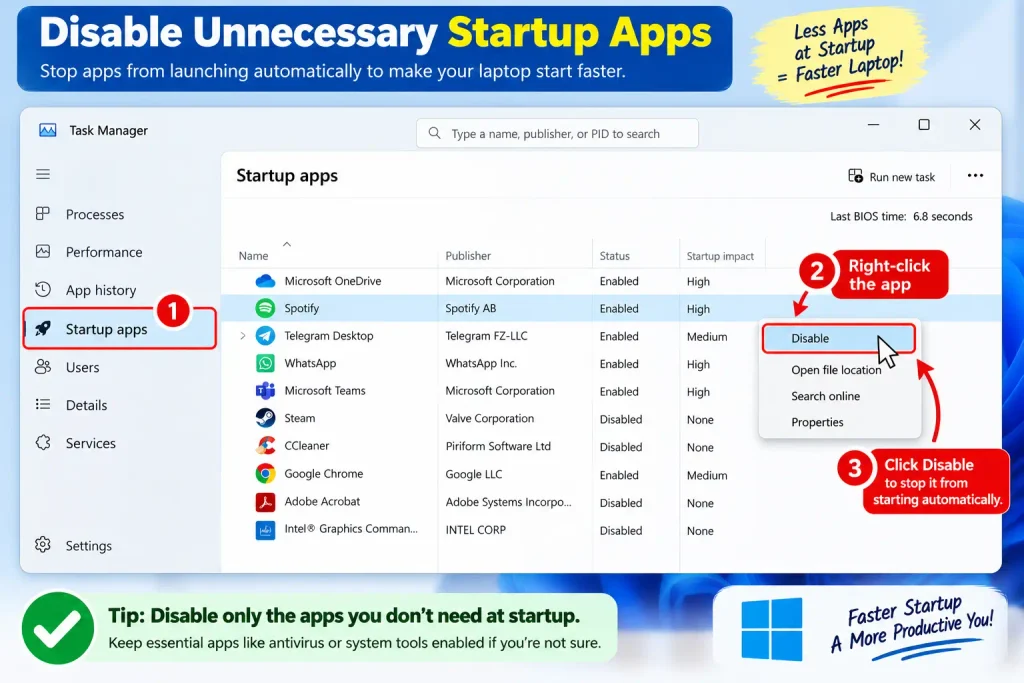
Be careful not to turn off important Windows services, security software, or hardware-related utilities unless you know what they do.
And you don’t have to uninstall an application to stop it from launching at startup. By disabling unneeded startup apps, you can reduce the amount of work Windows has to do when you sign in.
If your laptop becomes noticeably faster after disabling a few unnecessary startup apps, you may have found one of the main causes of the slow startup. You don’t need to disable everything—keep essential security, hardware and system-related apps enabled.
3. Check Which Apps Are Using Your CPU and Memory
If your laptop is still slow after it boots up, see if a particular app is using up a lot of system resources.
Open Task Manager by pressing Ctrl + Shift + Esc.
Under the Processes section, look at:
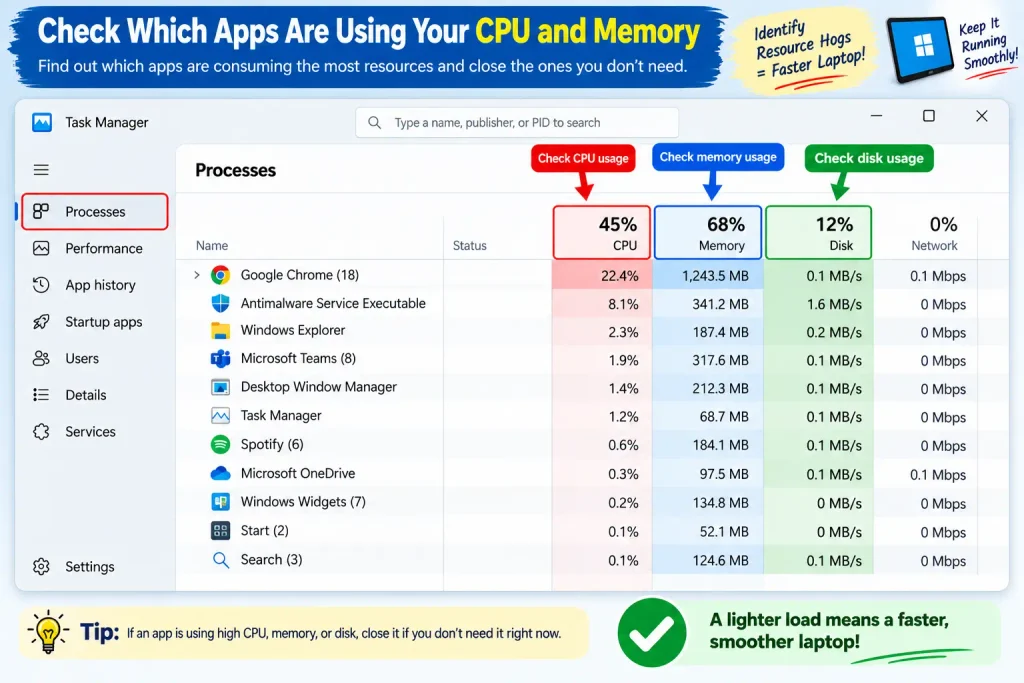
- CPU
- Memory
- Disk
If one application is always using a very high percentage of CPU or memory, it could be part of the slowdown.
For example, a web browser with many open tabs can use a lot of memory. When you close a window, the application may still be running in the background.
Close programs you recognize and no longer need.
Don’t kill processes just because they look weird. Windows or other critical software requires certain processes.
4. Free Up Storage Space
Having a system drive that’s almost full can make everyday computer maintenance more difficult, and it can also cause performance issues.
To see what storage you have available, go to:
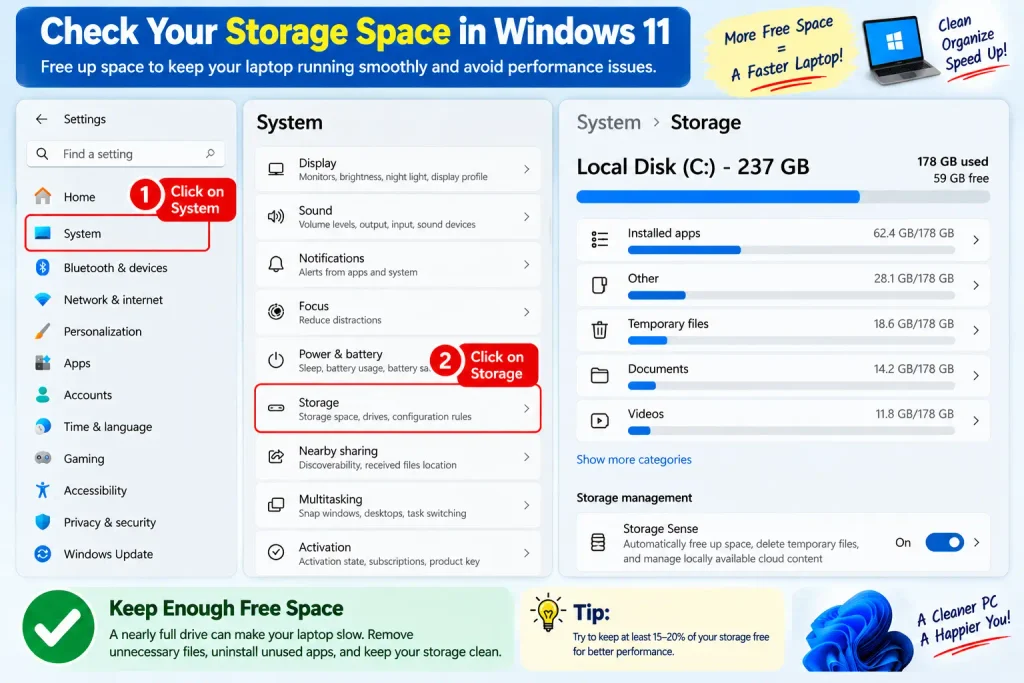
Settings → System → Storage
Windows shows you information about how your storage is being used.
Look for things such as:
- Temporary files
- Large downloads
- Recycle Bin contents
- Unused applications
- Large personal files
- Old installation files
Windows has built-in storage tools that can help you delete files you don’t need anymore.
Read the files carefully before deleting anything. Before deleting personal documents, photos, videos and other important files, be sure you have backed them up.
Keeping a reasonable amount of free space on your system drive also makes it easier to install updates and keep your computer maintained.
5. Install Pending Windows Updates
Sometimes a laptop may seem to be running slowly because Windows is downloading, installing or finishing off updates in the background.
Open and check for updates:
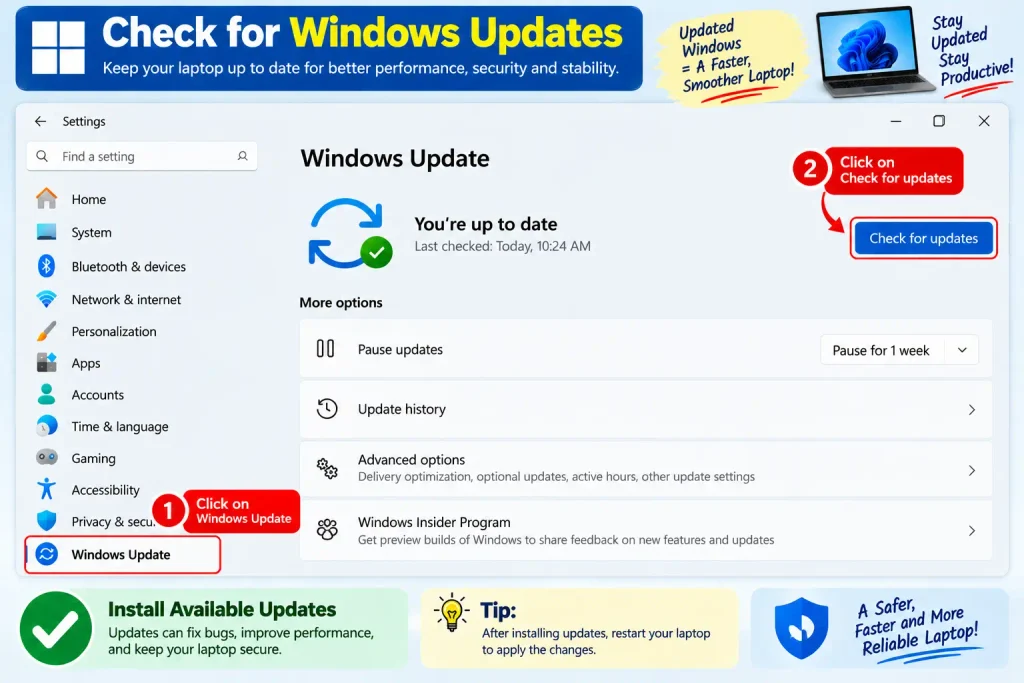
Settings → Windows Update
Then select Check for updates.
If updates are available, allow Windows to install them and restart the computer when prompted.
Updates may include security enhancements, bug fixes, driver updates and performance enhancements.
If your laptop is acting slow immediately after a major update, allow Windows to complete its background tasks. However, if the slowdown is severe and persists, look for other possible causes, rather than assuming that the update is always to blame.
6. Reduce Unnecessary Browser Tabs and Extensions
Your web browser can be a big contributor to memory usage, especially if you keep a lot of tabs open.
For instance, you may have email, YouTube, social media, online tools, shopping sites and many other pages open at the same time.
Close unused tabs.
Also check the extensions on your browser.
Remove or disable extensions you no longer need. Go to your browser’s extension settings.
If the laptop is working much faster than when you’re not running the browser, the browser or one of its extensions could be to blame.
Instead of having dozens of tabs open in your browser, you might want to bookmark pages you want to come back to later.
7. Scan Your Laptop for Malware
At times, unwanted or malicious software can use up CPU, memory, network, or disk activity.
Windows has inbuilt security features that can help you check for threats.
Open Windows Security and navigate to:
Virus & threat protection
Run a scan and follow the Windows Security recommendations.
If the slow-down began after you installed some new, unfamiliar software, check your recently-installed applications too.
Avoid downloading any random “PC speed booster” or “registry cleaner” programs that claim to make your laptop faster. Some third party utilities can provide little benefit and can add extra unwanted software.
8. Check for Overheating
If a laptop gets too hot, its hardware may throttle performance to keep temperatures in check, slowing the laptop down.
Pay attention to signs such as:
- The laptop feels unusually hot
- The fan runs constantly
- Performance drops after using the laptop for a while
- The fan becomes unusually loud
- The laptop becomes slow during demanding tasks
Make sure the laptop’s ventilation openings are not blocked.
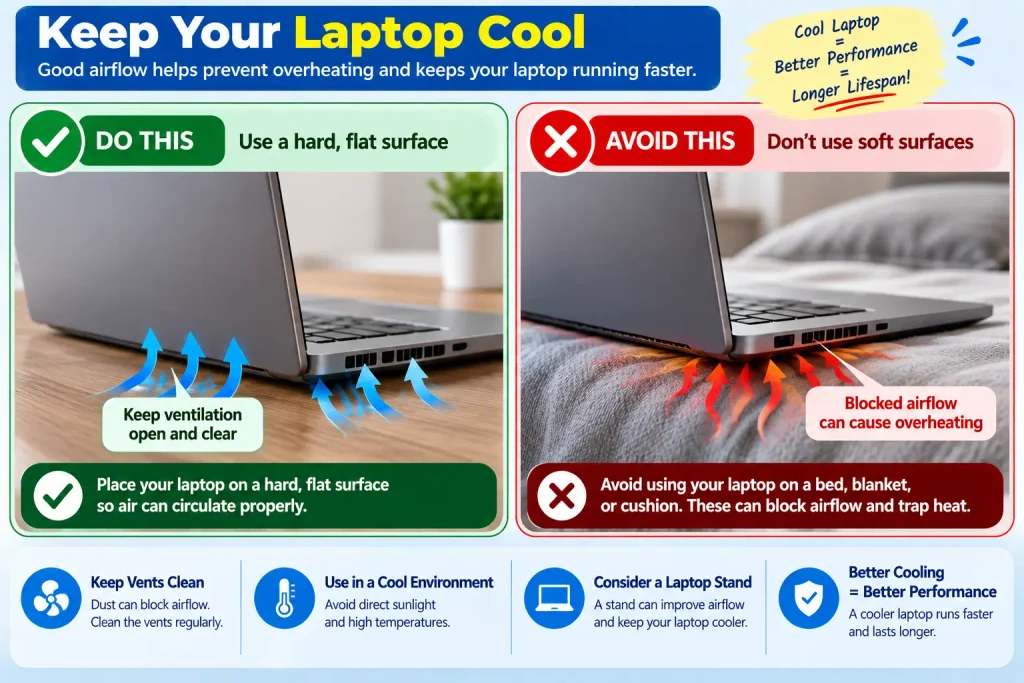
If possible do not use on soft surfaces such as a bed, thick blanket or cushion. They can impede the flow of air.
Set the laptop on a hard flat surface that allows proper airflow around it.
If the laptop is a few years old, and has never been internally cleaned, then dust build-up may be affecting cooling too. If you don’t feel comfortable opening the laptop yourself then professional cleaning may be safer.
9. Consider Upgrading From an HDD to an SSD
If your laptop has a traditional mechanical hard disk drive (HDD), the drive itself might be a big factor in why your laptop takes forever to start up and lags along.
SSD generally provides much faster access to storage than an HDD. This can make Windows startup, application launching and file access feel far more responsive.
Check if your laptop supports an SSD and what type of drive it uses before upgrading.
You should also backup your important files before replacing/migrating the system drive.
If you have an old HDD in your laptop, and it still works well, then upgrading to an SSD can be one of the most obvious hardware upgrades you can do.
How to Find Out What Is Making Your Laptop Slow
If you’re not sure what’s causing the problem, don’t change everything at once.
Instead, open up Task Manager and watch your laptop right after it boots up.
Press Ctrl + Shift + Esc and watch the CPU, Memory, and Disk columns.
For example:
- High CPU: A program or background process may be doing heavy work.
- High Memory: Too many applications may be running or the laptop may have limited RAM.
- High Disk usage: Windows processes, applications, updates, or a slower storage drive may be involved.
Wait a few minutes and see if usage goes down.
This quick check can help you understand if the problem is software-related or if you may need to check the laptop’s hardware.
Should You Disable All Startup Programs?
Nope.
Disabling every startup application is not recommended.
Some programs are necessary for security, hardware features, synchronization, or other functions your depend on.
Instead, use applications that you are comfortable with and don’t need right after login.
For example, a program you use only once a week may not need to start up every time Windows starts.
The goal is not to have no startup programs. The idea is to not run unnecessary programs at startup that will compete for system resources.
What If the Laptop Is Still Slow?
If these solutions do not help and your laptop is still slow, it might be a hardware issue. If your laptop also keeps freezing or becomes unresponsive, see our guide on Laptop Keeps Freezing for more troubleshooting steps.
If your laptop also has frequent connection problems, see our guide on Wi-Fi Keeps Disconnecting on Laptop for additional troubleshooting steps.
Consider checking:
- Available RAM
- Storage drive health
- CPU performance
- Laptop temperatures
- Battery and power settings
- Windows system files
- Recently installed applications
- Device drivers
If your laptop has an old HDD, very little RAM, or aging hardware, software tweaks will only get you so far.
If that’s the case, a hardware upgrade or professional diagnosis may be more useful than installing another “speed booster”.
When Should You Consider Replacing Your Laptop?
A slow start up doesn’t necessarily mean you need a new laptop.
But if the computer is suffering from a lot of problems at the same time, such as:
Very old equipment
Frequent crashing
Storage drive issues
Not enough RAM and you can’t upgrade it.
Overheating after servicing
Clean install of Windows doesn’t fix the poor performance
Hardware components that are getting hard or expensive to replace
If the laptop is working well otherwise try for maintenance or targeted upgrade first.
How to Prevent Your Laptop From Becoming Slow Again
If your laptop is running faster, there are a few habits that can help it stay that way.
Keep Startup Apps Under Control
Make it a habit to review your startup programs and turn off any apps you don’t need anymore.
Keep Enough Free Storage
Try not to leave the system drive nearly full for long periods of time
Keep Windows Updated
Install important Windows and security updates regularly.
Remove Software You Don’t Use
Instead of letting applications run background processes, remove those you no longer need.
Keep the Laptop Cool
Keep ventilation openings in the appliance enclosure free of obstruction. Use the laptop on a hard, flat surface.
Don’t Install Random Optimization Tools
Watch out for programs that claim to speed up your computer dramatically with one click
FAQs
Why is my laptop so slow when I first turn it on?
Your laptop may be slow when you first turn it on because Windows is loading startup apps, background processes, updates and system services at the same time. Too many startup programs, low storage, limited RAM, an older HDD or overheating can also contribute to slow startup.
How can I make my laptop start faster?
First, disable the unnecessary startup apps in Task Manager. If your laptop has an old HDD, you can look into an SSD upgrade. You can also free up storage, uninstall unused programs, and install pending updates.
Does low storage make a laptop slow?
This can cause performance and maintenance problems if there is very little free storage. Check your system drive . Delete unnecessary files . Ensure you have good backups of important personal data .
Does an SSD make a laptop faster?
If your laptop is upgradeable, replacing an HDD with an SSD will significantly improve startup time and make applications and files seem more snappy.
Why does my laptop become fast after 10 minutes?
This can happen when Windows and startup apps perform background work immediately after you sign-in. Look in task manager and see what resources are being heavily used during that time.
Should I use a PC cleaner to speed up my laptop?
You don’t usually need a third-party PC cleaner just to fix a slow startup. Windows already offers tools to manage storage, startup apps, updates and security.
Final Thoughts
If your laptop is slow after startup, don’t immediately assume that you need a new computer.
Start with the easy fixes. Restart your laptop, disable startup apps you don’t need, check Task Manager, clear out available storage, install Windows updates, declutter your browser, and scan for malware.
If the laptop is still slow, check for overheating. Consider if an older HDD or limited hardware is holding it back.
Often, discovering what is using the resources on your laptop is more helpful than adding yet another optimization program. Follow the fixes one by one and you should be able to find the reason for slow startup and improve your laptop’s everyday performance.