
A slow Wi-Fi connection can quickly become frustrating. Videos start buffering, websites take longer to load, video calls freeze, and even simple downloads seem to take forever. The good news is that you may not need a new internet plan or an expensive router to solve the problem.
If you are wondering how to fix slow WiFi at home, there are several simple things you can try first. Router placement, interference, too many connected devices, outdated software, or even the Wi-Fi band you are using can affect your connection.
In this guide, we’ll explain how to fix slow WiFi using nine practical methods that you can try at home.
By following these simple troubleshooting steps, you can learn how to fix slow WiFi without immediately replacing your router or paying for expensive technical support.
Why Is My Wi-Fi So Slow?
Before trying to fix the problem, it helps to understand what may be causing it.
A slow Wi-Fi connection doesn’t necessarily mean your internet provider is giving you a slow connection. Sometimes your internet connection is fine, but the wireless signal between your router and device is weak.
Common causes include:
- Your router is too far away.
- Walls or large objects are blocking the signal.
- Too many devices are using the network.
- Nearby wireless devices are causing interference.
- Your router or Wi-Fi adapter needs an update.
- You are connected to an unsuitable Wi-Fi band.
- Your internet service itself is experiencing a problem.
Google’s Wi-Fi troubleshooting guidance notes that distance, physical obstructions, interference, connected devices, Wi-Fi bands, and the speed supplied by your ISP can all affect Wi-Fi performance.
Now let’s find the cause and fix it.
1. Test Your Internet Speed First
Before changing your router settings, test your current internet speed.
Run the test while standing relatively close to your router. Pay attention to:
Download speed: How quickly data reaches your device.
Upload speed: How quickly your device sends data.
Latency or ping: How long data takes to travel between your device and a server.
Compare the result with the internet plan you are paying for.
Then repeat the test from the room where you normally experience slow Wi-Fi.
What do the results tell you?
If the connection is fast near the router but much slower in another room, the problem is probably related to Wi-Fi coverage rather than your internet plan.
If speeds are poor even when you’re close to the router, the modem, router, ISP connection, or device itself may be responsible.
This simple test can save you from buying equipment you don’t actually need.
2. Restart Your Router and Modem
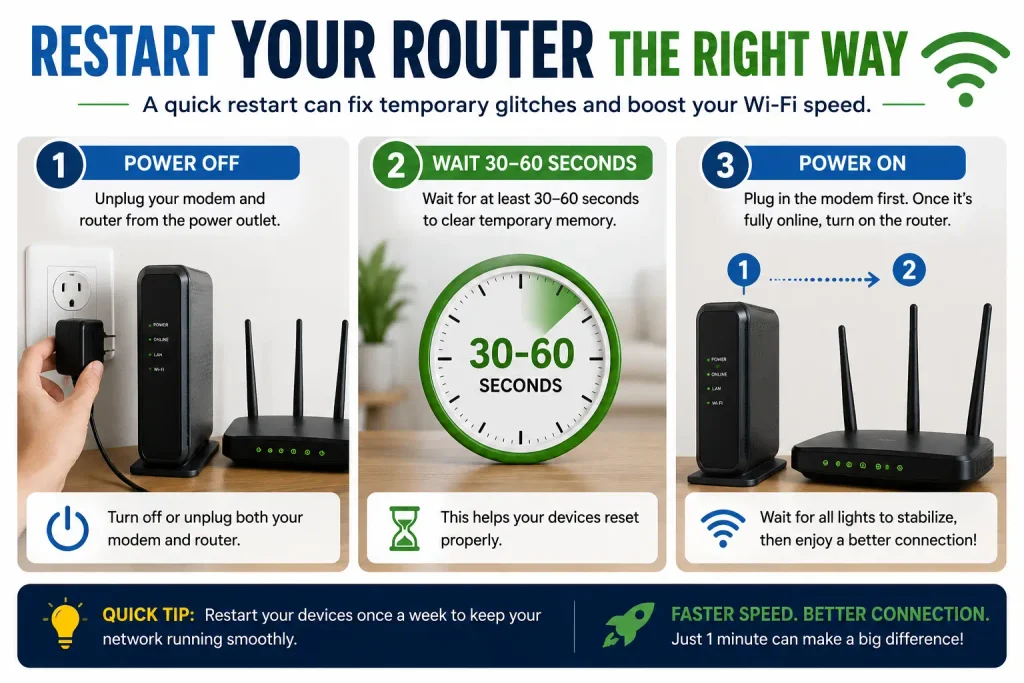
One of the easiest ways to fix slow WiFi is also one of the most overlooked: restart the network equipment.
Routers and modems operate continuously and can occasionally develop temporary connection problems.
Try this:
- Turn off or unplug your modem and router.
- Wait about 1–2 minutes.
- Reconnect the modem first.
- Allow it to start fully.
- Reconnect or turn on the router.
- Wait for Wi-Fi to become available.
- Test your internet speed again.
Google recommends restarting network equipment as one troubleshooting step for slow internet and Wi-Fi problems.
Restarting your router is one of the easiest solutions when learning how to fix slow WiFi, because it can clear temporary connection problems and restore normal internet speed.
Quick Tip
Don’t immediately assume that restarting fixed the problem permanently. Test the connection from the same location and device you were using before so you can make a fair comparison.
For additional troubleshooting steps, you can also check Google’s official guide to fix internet connection problems.
3. Move Your Router to a Better Location
Router placement can have a surprisingly large effect on Wi-Fi performance.
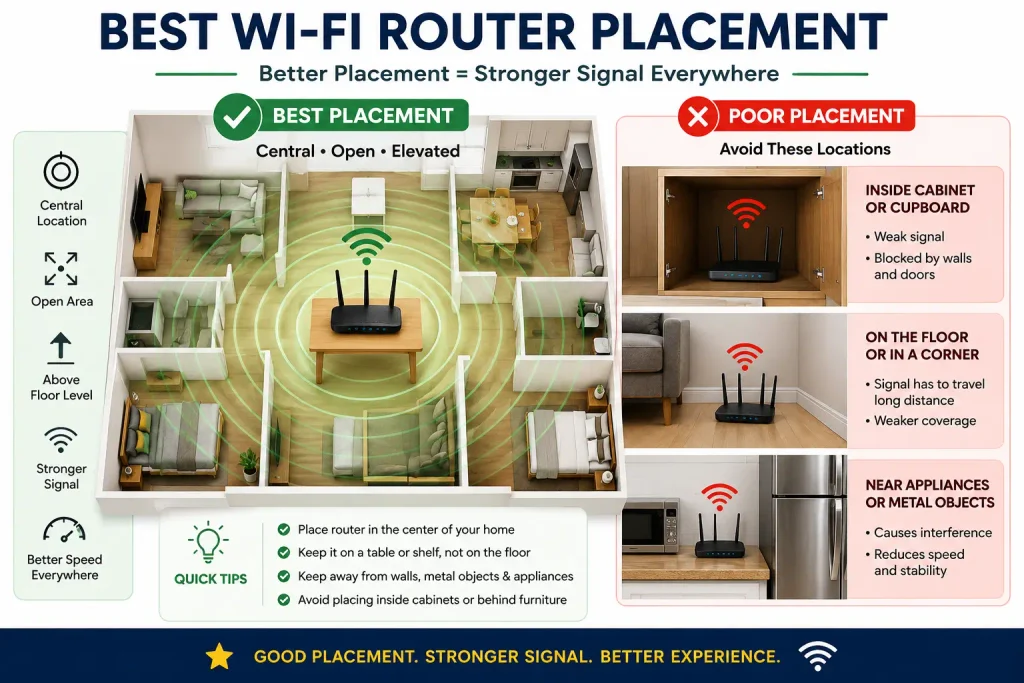
If your router is hidden inside a cabinet, sitting on the floor, or placed at one end of the house, some rooms may receive a weak signal.
For better coverage, try placing your router:
- Near the center of your home
- In an open area
- Away from thick walls and large furniture
- Above floor level
- Away from metal objects
- Away from appliances that may cause interference
Avoid hiding your router simply because you don’t like the way it looks.
Google recommends keeping routers or Wi-Fi points centrally located where possible and reducing physical obstructions between the router and connected devices.
Why does this work?
Wi-Fi signals weaken as they travel through physical barriers.
A router placed in an open, central location has a better chance of providing usable coverage throughout your home.
So before buying a Wi-Fi extender, try changing the router location first.
4. Reduce Wi-Fi Interference
Your router isn’t the only device using radio frequencies around your home.
Other electronics and nearby wireless networks can interfere with Wi-Fi performance.
Potential sources include:
- Nearby Wi-Fi networks
- Bluetooth devices
- Microwave ovens
- Some cordless phones
- Other wireless equipment
Intel lists interference and overlapping wireless networks among possible causes of Wi-Fi performance problems.
Changing to a less crowded channel can help you understand how to fix slow WiFi when interference from nearby networks is affecting your connection.
What can you do?
Keep the router away from electronics when practical.
If you live in an apartment building, many neighboring routers may also be competing for wireless spectrum.
Some modern routers automatically select an appropriate channel, while others allow you to change the Wi-Fi channel manually.
However, don’t start changing advanced settings randomly.
Change one setting at a time, test the result, and keep track of whether performance improves or gets worse. Intel recommends this systematic approach when troubleshooting wireless problems.
5. Disconnect Devices You Aren’t Using
Think about how many devices are connected to your home Wi-Fi.
You may have:
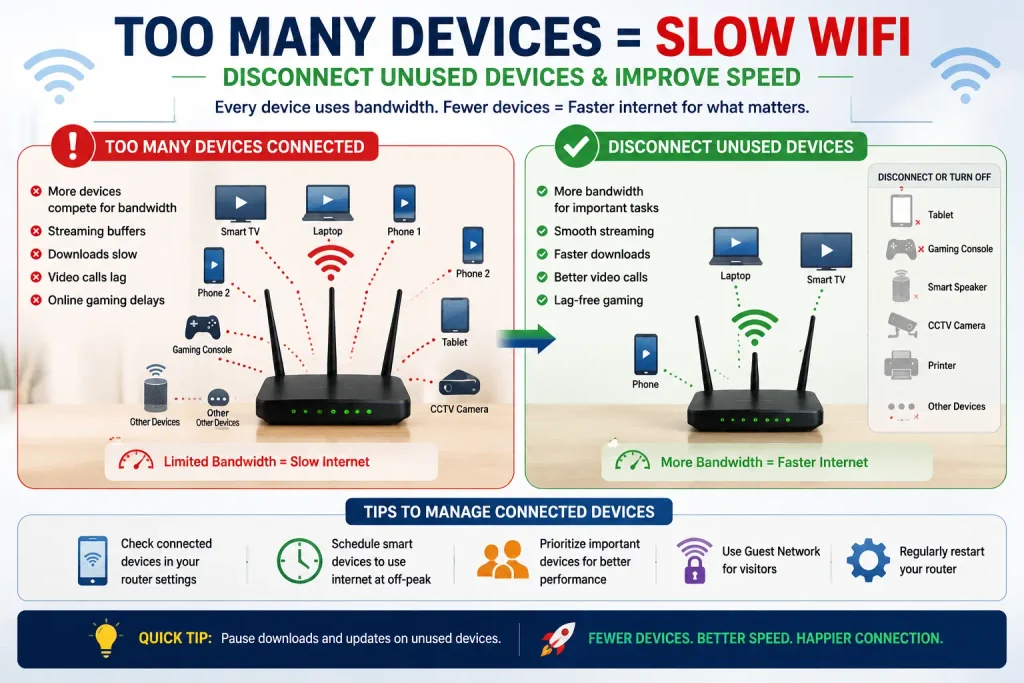
Phones, laptops, tablets, smart TVs, security cameras, gaming consoles, smart speakers, streaming devices and other smart-home equipment all sharing the same connection.
Each connected device doesn’t necessarily cause a problem by itself, but several devices performing bandwidth-heavy tasks simultaneously can slow things down.
For example, imagine one person is streaming a high-resolution movie while another is downloading a large game and someone else is on a video call.
They are all competing for available bandwidth.
Google specifically notes that connected devices share available bandwidth and that simultaneous high-bandwidth activities can reduce performance.
Try this
Temporarily disconnect or pause devices you aren’t using.
Then run your speed test again.
If Wi-Fi performance improves significantly, network congestion may have been part of the problem.
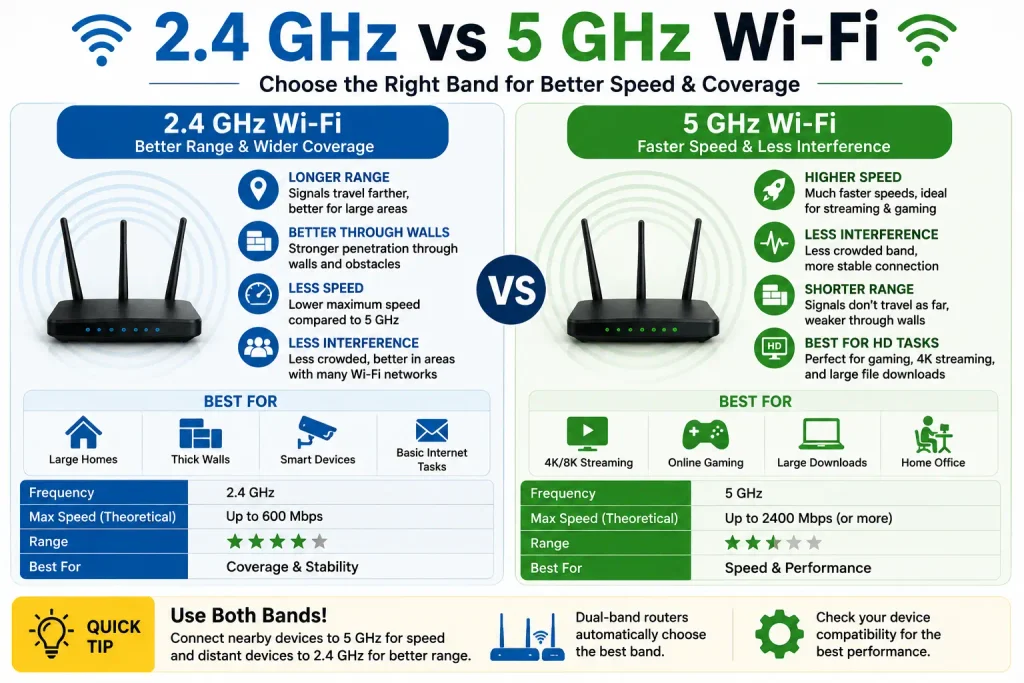
6. Switch Between 2.4 GHz and 5 GHz Wi-Fi
Many routers provide more than one Wi-Fi frequency band.
Two commonly encountered bands are:
2.4 GHz – generally useful when you need better range or have obstacles between you and the router.
5 GHz – often capable of higher speeds at shorter distances, depending on your router, device, environment, and Wi-Fi standard.
Google notes that devices connected through 2.4 GHz may not reach speeds as fast as devices using 5 GHz.
Intel also recommends testing the available bands when troubleshooting wireless performance.
Which one should you use?
If you’re close to your router and want faster performance, test 5 GHz.
If you’re farther away and struggling to maintain a stable connection, test 2.4 GHz.
Don’t assume one band will always be better. Your home’s layout and nearby wireless networks can change the result.
Choosing the right WiFi band can make a noticeable difference when figuring out how to fix slow WiFi, especially in homes with multiple connected devices.
7. Update Your Router Firmware and Device Drivers
If you’re still trying to figure out how to fix slow WiFi, software may be worth checking.
Router manufacturers periodically release firmware updates. Depending on the router, updates may include bug fixes, security improvements, compatibility changes, and performance-related fixes.
Check your router manufacturer’s official instructions before updating anything.
For laptops and desktop computers, also check whether the Wi-Fi adapter driver is outdated.
Intel lists outdated or incorrect wireless drivers, router configuration and interference among possible causes of Wi-Fi issues.
Intel also recommends checking the router/modem manufacturer’s firmware updates when troubleshooting wireless performance.
Keeping your router firmware updated is another effective step when learning how to fix slow WiFi, as updates can improve performance, security, and connection stability.
Important
Don’t download router firmware or Wi-Fi drivers from random third-party websites.
Use your router manufacturer’s or computer manufacturer’s official support page whenever possible.
8. Try an Ethernet Cable
Sometimes the easiest way to determine whether Wi-Fi itself is causing the slowdown is to temporarily bypass it.
Connect a compatible computer directly to your router using an Ethernet cable and test the internet connection.
If the wired connection is significantly faster than Wi-Fi, your internet service may be fine and the wireless side of your network needs attention.
A wired connection can also be useful for devices that need a consistently stable connection, such as:
- Desktop computers
- Gaming consoles
- Smart TVs
- Work-from-home computers
You don’t necessarily need to connect every device with Ethernet. Even moving one or two bandwidth-heavy devices off Wi-Fi can sometimes help reduce wireless congestion.
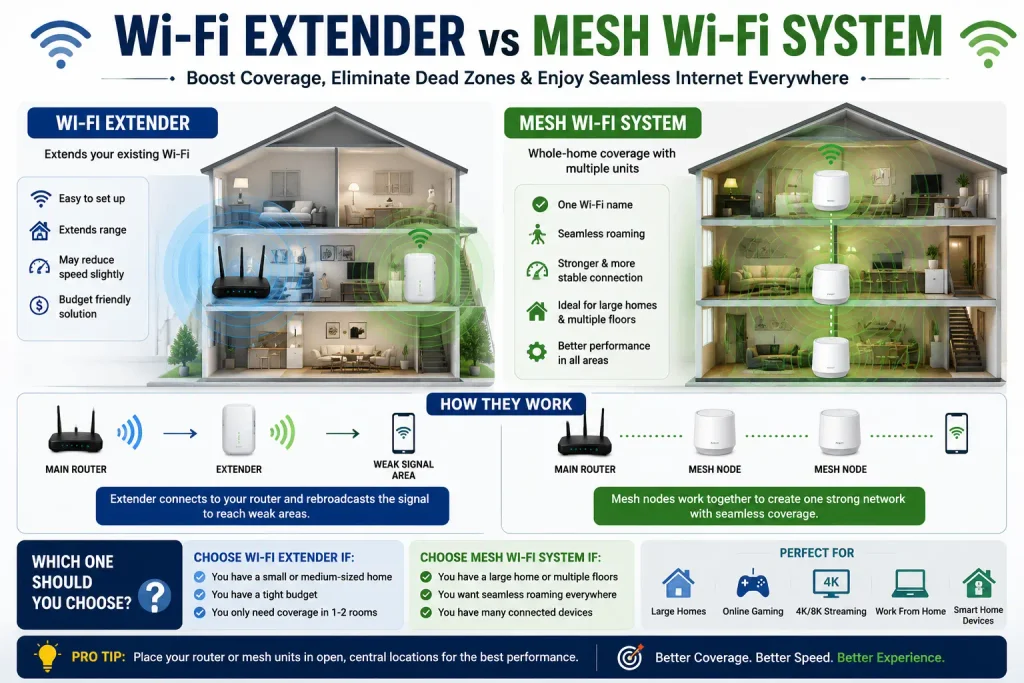
9. Consider a Wi-Fi Extender or Mesh System
If your internet works well close to the router but remains weak in distant rooms even after improving router placement, your home may simply need better Wi-Fi coverage.
Two common options are:
Wi-Fi Extender
A Wi-Fi extender can help extend coverage into areas where the router signal is weak.
However, an extender doesn’t magically make your original internet connection faster. Intel notes that extenders can have lower performance than connecting directly to a router because of how they receive and retransmit wireless traffic.
Mesh Wi-Fi System
A mesh system uses multiple Wi-Fi points around a home to provide broader coverage.
This can be particularly useful for:
- Larger homes
- Multi-floor homes
- Rooms far away from the main router
- Homes with difficult Wi-Fi dead zones
But don’t rush to buy either option.
First try the free solutions in this article. If moving the router or switching bands fixes the problem, you’ve saved yourself money.
When Should You Contact Your Internet Provider?
If none of these methods fix slow WiFi, the issue may not be inside your home.
Contact your Internet Service Provider (ISP) if:
- Your wired internet is also consistently slow.
- Speed tests are repeatedly far below expectations.
- The connection frequently drops.
- Your modem shows unusual warning lights.
- Multiple devices experience the same problem.
- Restarting the modem and router doesn’t help.
Google recommends contacting your ISP when testing indicates the service itself is slower than expected.
Your provider may be able to identify a service problem, check the connection to your home, or determine whether your modem needs attention.
How to Fix Slow WiFi: Quick Checklist
When your Wi-Fi suddenly becomes slow, work through the problem in this order:
Test speed → Restart router/modem → Move closer to router → Improve router placement → Disconnect unnecessary devices → Test 2.4/5 GHz → Check updates → Test Ethernet → Consider better coverage → Contact ISP
This order is important because it starts with free troubleshooting methods before asking you to buy anything.
Frequently Asked Questions
Why is my Wi-Fi suddenly so slow?
Sudden Wi-Fi slowdown can be caused by network congestion, interference, a temporary router or modem issue, an ISP problem, background downloads, or a device-specific problem. Start by testing another device and restarting your network equipment.
Does restarting the router make Wi-Fi faster?
It can. Restarting may resolve temporary network or modem issues, but it won’t solve permanent problems such as poor router placement, inadequate coverage, or an internet plan that doesn’t provide enough bandwidth.
Is 5 GHz Wi-Fi faster than 2.4 GHz?
5 GHz can provide faster performance under suitable conditions, particularly at shorter distances. However, actual performance depends on your router, device, interference and home layout. Test both rather than assuming one is always better.
Where is the best place to put a Wi-Fi router?
Generally, place the router in an open and reasonably central location, away from major obstructions and interference sources. Avoid hiding it inside enclosed furniture if possible.
Will a Wi-Fi extender increase internet speed?
Not necessarily. An extender is primarily intended to improve coverage in weak-signal areas. It cannot make the underlying internet service faster, and some extender configurations can provide lower throughput than a direct router connection.
Why is Wi-Fi fast near my router but slow in another room?
Distance and physical barriers can weaken the wireless signal. If your speed is good near the router but poor farther away, focus on router placement and coverage rather than immediately upgrading your internet plan.
Final Thoughts
Learning how to fix slow WiFi doesn’t have to involve complicated networking settings or expensive equipment.
Once you understand how to fix slow WiFi, most common connection problems can be solved at home without calling a technician or immediately buying a new router.
Start with the basics. Test your speed, restart your equipment, improve router placement, reduce unnecessary network activity, and compare the available Wi-Fi bands. If those steps don’t work, check updates and use an Ethernet connection to help determine whether the problem is Wi-Fi or the internet service itself.
Only after these troubleshooting steps should you consider purchasing a Wi-Fi extender, mesh system, or other networking equipment.
A few small changes may be enough to turn a frustrating connection into a much more reliable home network.
More Easy Home Fixes
Keeping your home running smoothly often means dealing with small everyday problems. If you’re tackling other common issues around the house, check out our guides on how to fix a squeaky door and how to fix a leaky faucet for simple step-by-step solutions.